
Change look and feel
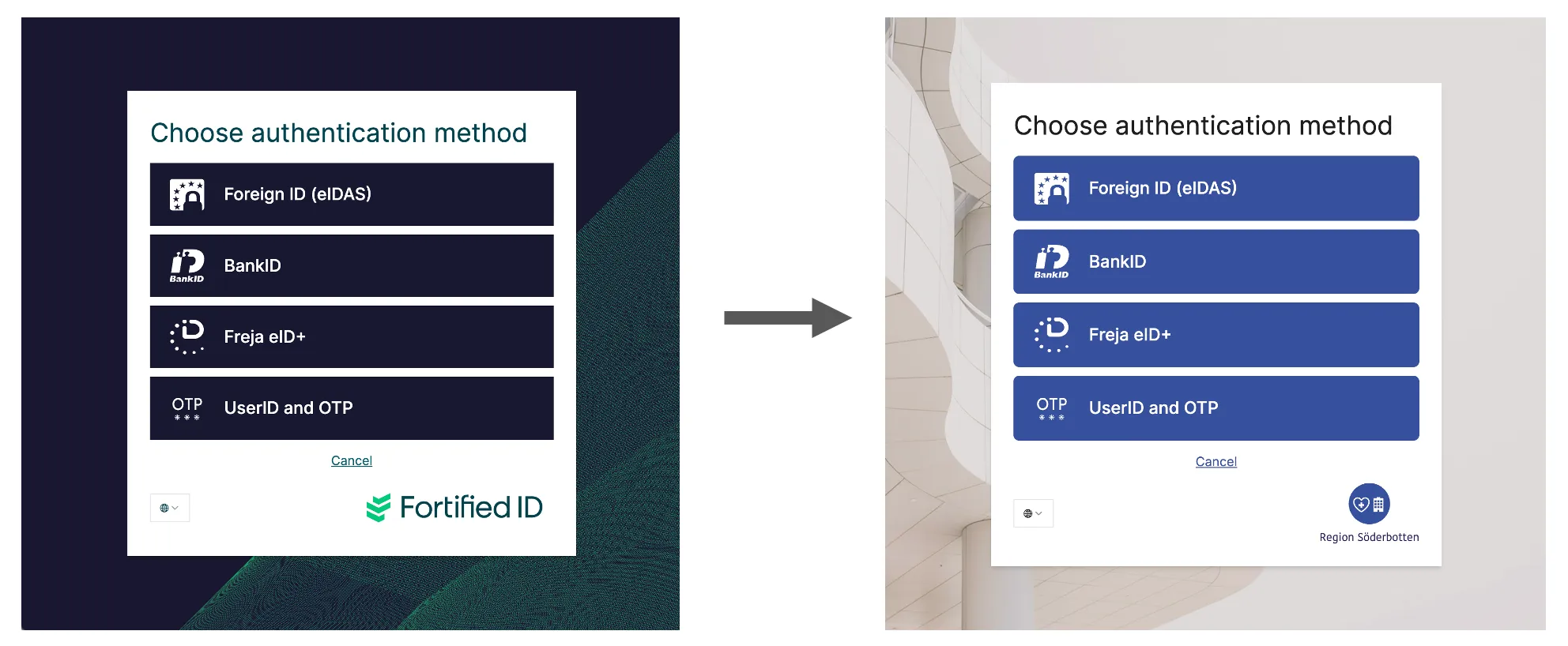
Scenario
Section titled “Scenario”By default look and feel of Fortified ID products is in Fortified ID colors and logos.
This use case describes how you can change the look and feel to match your company colors and logos.
Prerequisite
Section titled “Prerequisite”- You have installed one or more of the Fortified ID product and the product is running with Fortified ID look and feel.
- Download ZIP-file with an example look and feel for a fictional organization called Region Söderköping.
Disable current look and feel
Section titled “Disable current look and feel”- Stop the service of the application your changing look and feel.
- Open a file/folder explorer and go to
drive:\\FortifiedID\mgmt-center\data\customer\product\overlay - Rename current assets folder to assets_org
Add new look and feel
Section titled “Add new look and feel”- Add the assets folder from zip-file to the overlay folder.
- Start service again.
- You might need to clear cache in your browser.
Test new look and feel
Section titled “Test new look and feel”- Start service of the application you changed look and feel.
- Browse to application.
- Result should look like below
- Left is Fortified ID Access
- Right is Fortified ID Portal (Forms, Enrollment and Password Reset will look similar.)
More information
Section titled “More information”Use the example assets folder to create your own assets.
If you like to read more how the assets folder work and supports please check out following links.