Static SAML

Scenario
Section titled “Scenario”Fortified ID Access comes with two test authenticators. This use case addresses the test authenticator called Static SAML. If you want to set up a quick authenticator without having to connect to Active Directory, Entra or e.g. BankID, this authenticator can be a good choice.
Note. This use case uses default configuration of Management Center, Fortified ID Portal is already added as an SAML SP to Access acting as the SAML IdP.
Below are two links if above text is not fulfilled:
In this use case Fortified ID Portal will act as an SAML SP and Fortified ID Access as SAML IdP.
On the SAML IdP their will be one authentication method which is Static SAML.
This is not intended to be used in a production environment.
Prerequisite
Section titled “Prerequisite”- See above prerequisite in Scenario
- Windows server
- At least 16 GB of RAM
- A server certificate so LDAPS is supported for Active Directory
Note. All configuration and testing is done on the scenario server.
Add a Static SAML user
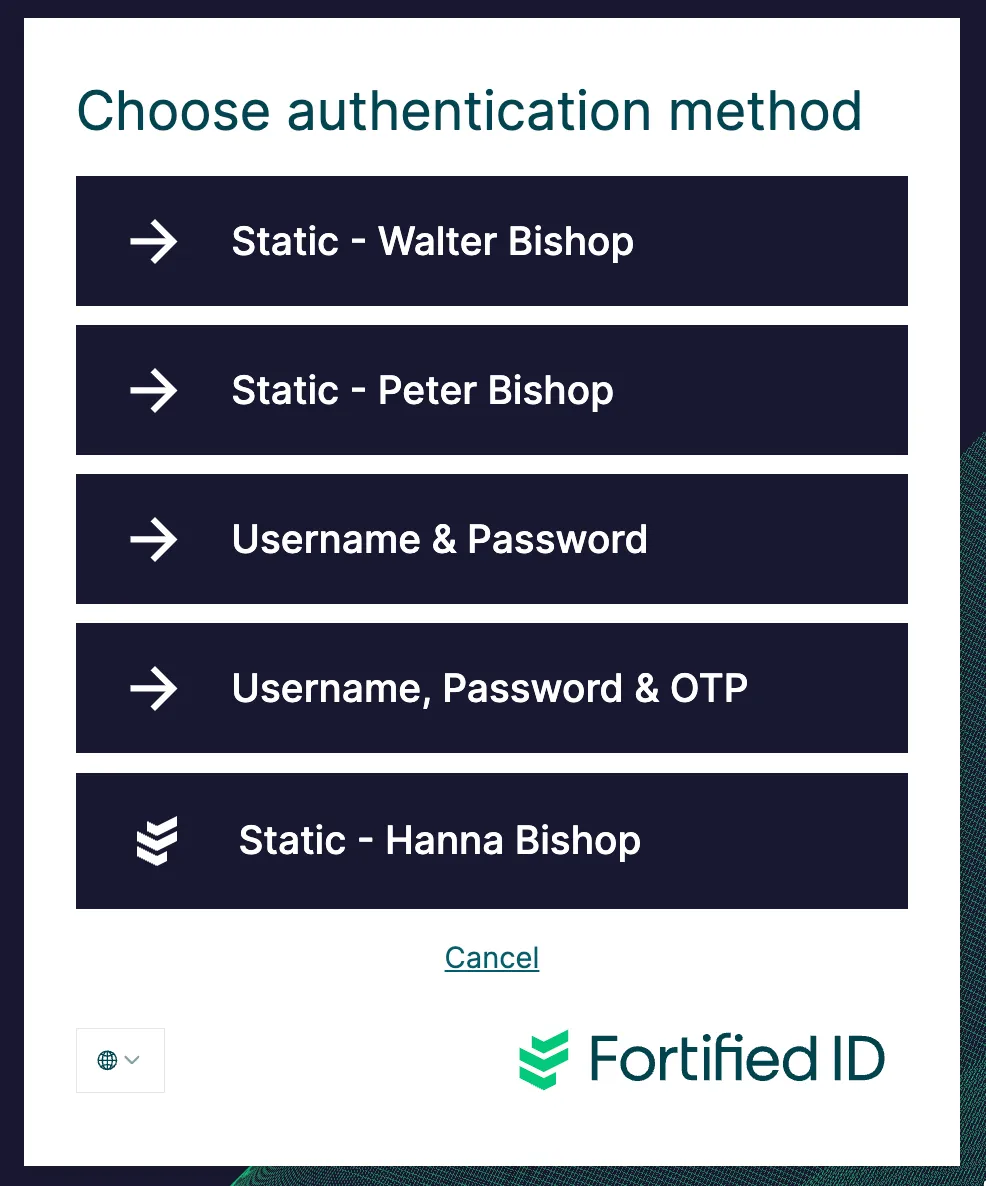
Section titled “Add a Static SAML user”Note. The default configuration includes two Static SAML user (Walter Bishop and Peter Bishop). We will create a third Static SAML user called Static - Hanna Bishop.
Add Static SAML authentication method
Section titled “Add Static SAML authentication method”-
Click Configuration tab
-
Click Authentication Methods and +
-
Expand Credential Validators
-
Scroll down and click Add for validator Static SAML data
-
For values, replace the default values with the one below.
{"id": "staticsaml_3","type": "StaticSAML","description": "Static data only for test.","config": {"base_path": "${globals.default_login_suffix}","nameID": "hbishop","attributes": {"givenName": ["Hanna"],"surname": ["Bishop"],"personalNumber": ["98989898"],"mail": [],"role": ["handboll","app1","app2"]}},"display_name": "Static - Hanna Bishop"} -
Deploy changes
-
Move on to next step
Add Credential validator to IdP default selector
Section titled “Add Credential validator to IdP default selector”- Click Configuration tab
- Expand SAML -> Default IdP -> Selector
- On selector object, click OPTIONS tab
- Click ADD OPTION and select the validator you just added, e.g. Static - Hanna Bishop (staticsaml_3)
- In Display Label type Static - Hanna Bishop
- In Logo URL, type assets/svg/fortified_app.svg
- Click Update
- Deploy changes
Edit existing Static SAML
Section titled “Edit existing Static SAML”- Click Configuration tab
- Click and expand Authentication Methods and +
- Expand Credential Validators
- Expand Static SAML data
- Click the Static SAML object you like to manage
The result should look like:
Section titled “The result should look like:”