
Management Center - Get started
Scenario
Section titled “Scenario”This use case provides a quick-start guide for setting up Fortified ID Management Center and its associated products.
Note: A valid license agreement is required for each product included in this setup.
The document is intentionally concise and structured to ensure that tasks are performed in the correct order. The goal is to help you quickly deploy a test environment that you can use to explore, test, and learn from.
The starting point for this scenario is a Windows Server with Active Directory installed.
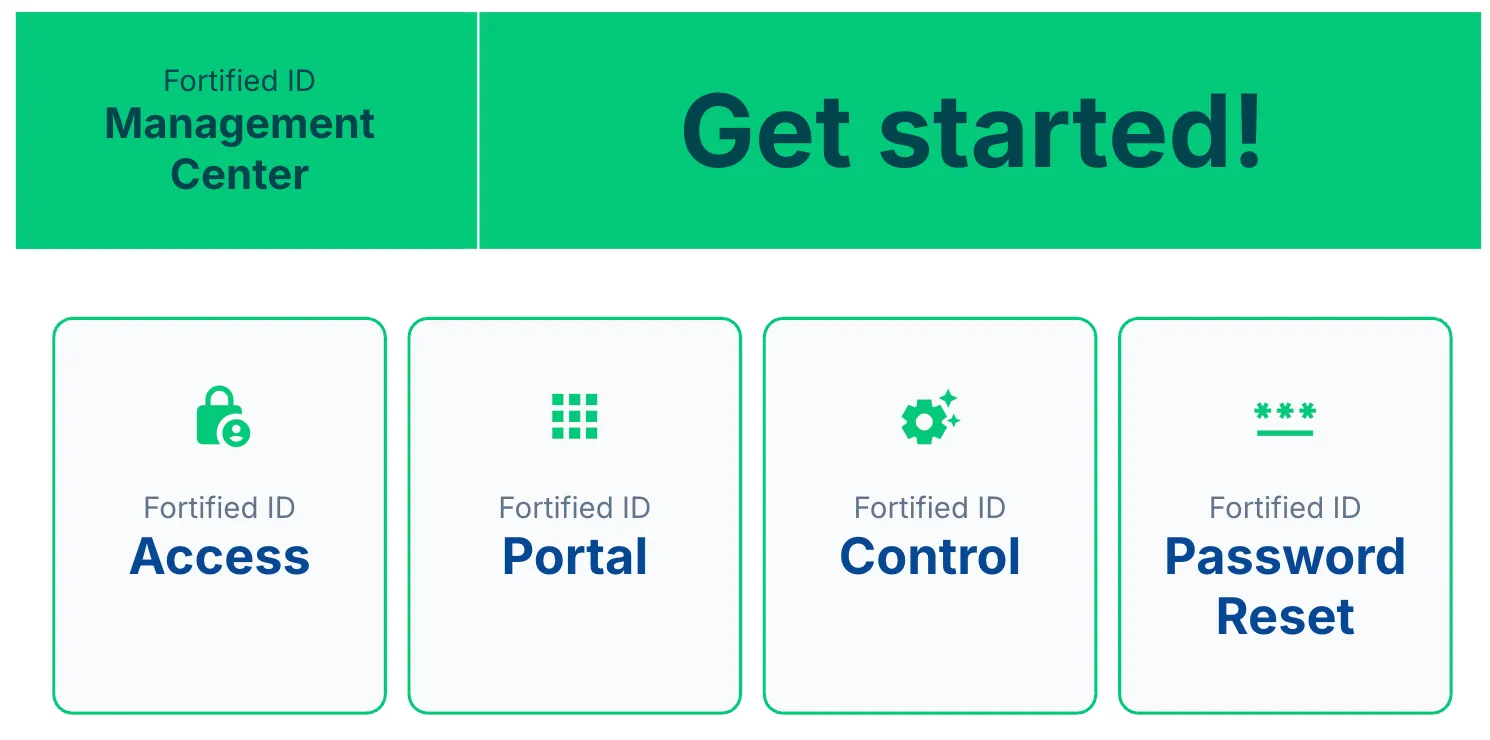
By the end of this use case, you will be able to authenticate users through Active Directory, test authentication flows, and continue with additional product configuration across Access, Control, Portal, and Password Reset.
(While multiple platforms and user sources are supported, this setup provides the simplest path for illustrating the initial configuration process.)
Prerequisite
Section titled “Prerequisite”You will need the following for this use case:
- Windows Server
- At least 16 GB of RAM
- A server certificate so LDAPS is supported for Active Directory
- Active Directory, for example installed on the same machine
- A number of users created
- Make some of the users managers for other users
- Make sure all users have a populated
mailattribute
- A number of groups created with some users added
- A number of users created
- Fortified ID Management Center
- Installation media for Windows
- A license file
Installation
Section titled “Installation”Installation and post-installation
Section titled “Installation and post-installation”Install Management Center on a Windows server
Section titled “Install Management Center on a Windows server”Use the following guide to install on Windows.
You should now have:
- Management Center installed
- Verified file system, services and log file location
Post-installation tasks
Section titled “Post-installation tasks”Use the following guide for post-installation tasks.
You should now have verified that the products included with Management Center:
- Are installed
- Running the latest version
- Use the default configuration that comes with each product
Add Control, Portal, and Password Reset to Access
Section titled “Add Control, Portal, and Password Reset to Access”Use the following guide to add Control, Portal, and Password Reset as SAML SP applications that use Access as SAML IdP: Add Fortified ID SAML SP app to Access
You should now have verified:
- That Control, Portal, and Password Reset now use Access as SAML IdP
- That you can log in to Portal as the default static SAML IdP user Peter Bishop
- That Peter Bishop has some default applications available in Portal
Change look and feel
Section titled “Change look and feel”By default, the look and feel uses Fortified ID branding. You can change this to match your organization's branding by following Change look and feel.
You should now have verified:
- That the look and feel has been updated with your images and colors
Add LDAP as an authentication source
Section titled “Add LDAP as an authentication source”Use the following guide to add LDAP as an authentication source: LDAP username and password using Management Center.
You should now have verified:
- That you can choose
Active Directoryas an authentication method when logging in to Portal
Add ADEdition to Control
Section titled “Add ADEdition to Control”Use the following guide to add ADEdition to Control.
You should now have verified:
- That you have a number of flows available for testing delegated administration with Active Directory