
Common configuration EntraID (Graph API)
Overview
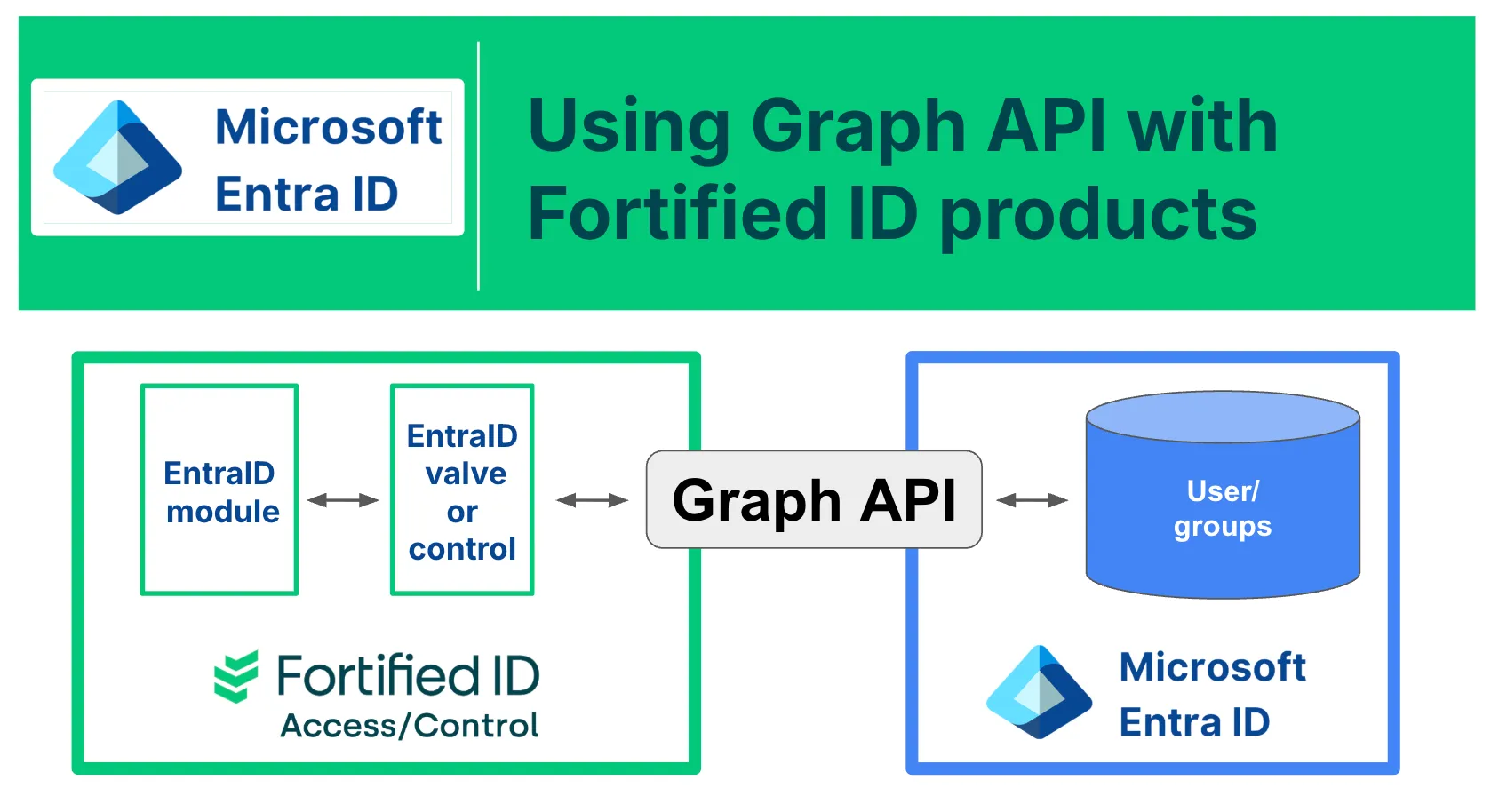
Section titled “Overview”The EntraID module is referenced and used by Fortified ID components such as valves and controls, whenever communication with Entra ID (Graph API) is performed. This document contains instructions on how to configure the EntraID module and the necessary steps in Entra ID.
Create a keystore used to authenticate with Entra ID
Section titled “Create a keystore used to authenticate with Entra ID”Create a pfx/p12 keystore to be used in this scenario.
Extract the certificate chain from the keystore file, using this guide. This should result in a certificate file that will be used later.
Create the Entra ID configuration
Section titled “Create the Entra ID configuration”Create App Registration
Section titled “Create App Registration”- Login to Entra ID as an administrator
- Select App Registrations
- Click New Registration
- Enter a name of the app registration describing the purpose of the app, example: "Fortified ID identity enrichment"
- Select Accounts in this organizational directory only (<tenant_name> only - Single tenant)
- Click Register
- Click on the App Registration in the list
- Select API permissions
- Select Add a permission
- Select Microsoft Graph
- Select Application Permissions
- Determent the rights needed for the API client and assign them accordingly. Different purpose require different rights. The list below contains some common rights, but might not be correct for your use case. Try to keep the assigned rights according to "The principle of least privilege".
- User.Read.All
- User.ReadWrite.All
- Group.Read.All
- Group.ReadWrite.All
- Group.Create
- GroupMember.Read.All
- GroupMember.ReadWrite.All
- Select Add permissions
- Select Grant admin consent for <tenant_name>
- In the Overview section, copy these values (they will be used in later steps):
- Application (client) ID
- Directory (tenant) ID
Add certificate for API authentication
Section titled “Add certificate for API authentication”- Select Certificates & secrets
- Select Certificates
- Click Upload certificate
- Select the certificate file previously saved
- Click Add
Assign Role
Section titled “Assign Role”- Select Microsoft Entra roles and administrators
- Open the role User administrator
- Select Add assignment
- Enter the name of the app previously registered, example: Fortified ID identity enrichment
- Select and Add
Configure the EntraID module
Section titled “Configure the EntraID module”Configure the EntraID module according to the documentation, ex:
{ "id": "entraid_1", "name": "EntraID", "config": { "client_id": "YOUR-CLIENT-ID", "tenant_id": "YOUR-TENANT-ID", "keystore": { "path": "${system.customer_home}/resources/entraid-cert.p12", "password": "P12-PASSWORD", "type": "PKCS12" }, "keystore_alias": "entraid-cert", "keystore_password": "P12-PASSWORD" }}Make sure to refer the keystore previously created.
Replace the values for client_id and tenant_id with the values previously copied.
Use Entra ID in Fortified ID products
Section titled “Use Entra ID in Fortified ID products”The common configuration is now ready to be used by the components in your use case.
Valves: /modules/pipes/valves/entraid/
Controls: https://docs.fortifiedid.se/forms/the-service/key-components/control/advanced-controls