LDAP (UID/Software OATH)
Scenario
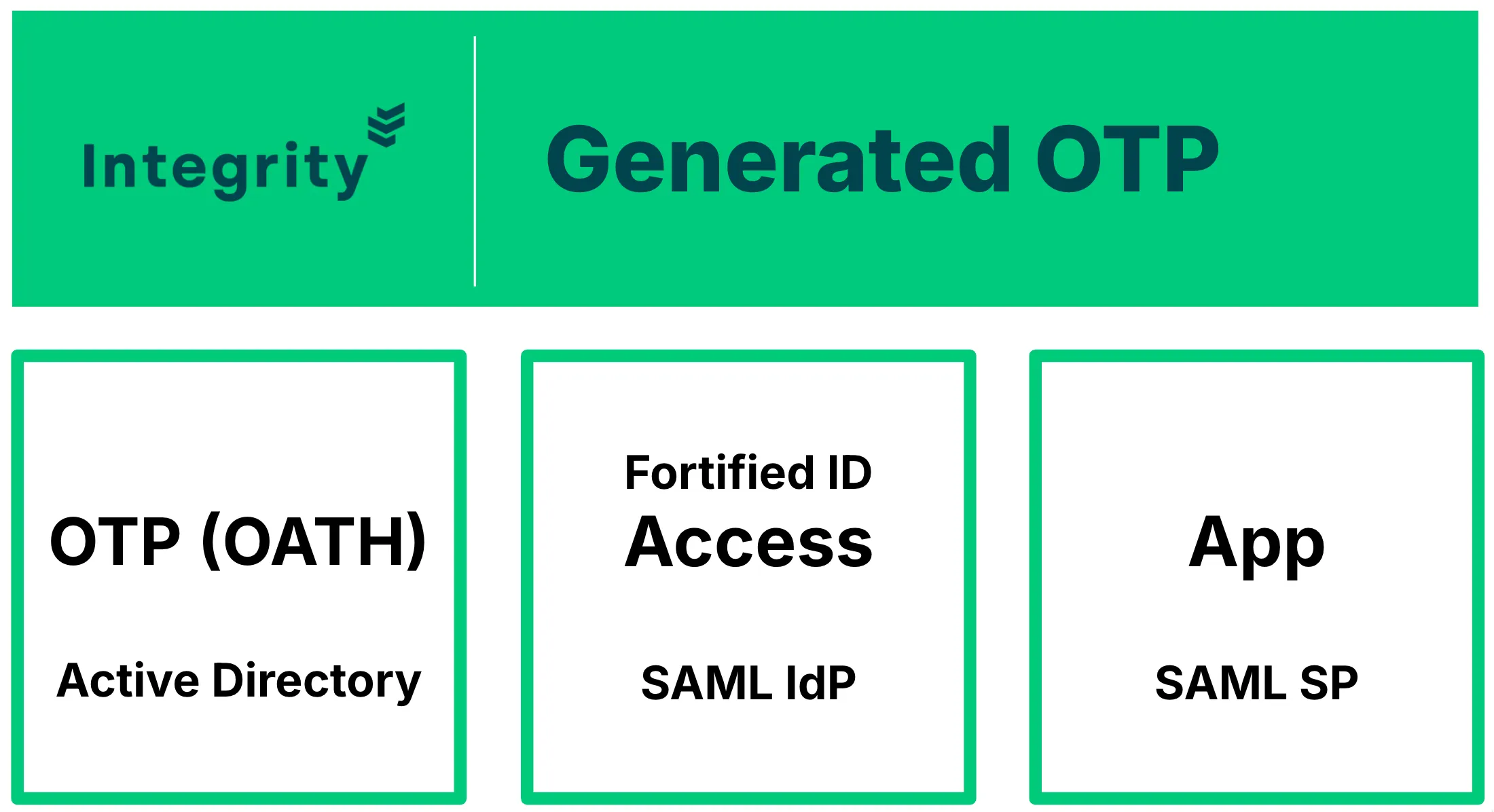
Section titled “Scenario”In this use case, you will add authenticate using Username and one-time passcode. The example will use an OATH software token created by Fortified ID Enrollment. The SQL database used is the same as the one Fortified ID Enrollment used to create tokens.
The user ID in this use case will be one from Active Directory. This use case assumes that another use case has already been done which is to log in with an Active Directory account and password. In this use case we will replace the vault to verify password with a valve to verify oath software token.
Prerequisite
Section titled “Prerequisite”- Microsoft SQL Server or Microsoft SQL Server Express configured with a database called fortifiedid_enrollment with some tokens already added. Check out this use case for more information, Software OATH token
- Fortified ID Access installed and configured with an authenticator to login Active Directory users using sAMAccountName and password as specified in use case, LDAP (UID/PWD) using MC
Overview of the components to add and configure
Section titled “Overview of the components to add and configure”- Add LDAPClient to communicate with your Active Directory
- Add OathValidation to communicate with your SQL server where the OATH software tokens are stored.
- User Username & Password credential validator to prompt user for username and password
- Add to default Selector object on the SAML default IdP
- Configure pipe to verify username and OATH token with your LDAPClient and OathValidation module
- Add EnrichIdentity to fetch user data about user
- Add to Default SAML IdP
- Configure SAML SP assertion (Portal SP) object to return correct data using data from the EnrichIdentity authenticator
1. Add a LDAPClient module
Section titled “1. Add a LDAPClient module”-
Login to Management Center for Access
-
Click Configuration tab
-
Expand Modules and click + to add new module
-
Click add LDAPClient
-
Click JSON button for the LDAPClient module
-
Copy data below and overwrite all existing data.
NOTE! Make sure you do not already have an LdapClient with id: ldapclient_1. If you have that make sure to change to something else and makt a note of the id.{"id": "ldapclient_1","name": "LdapClient","enabled": true,"instances": 1,"config": {"name": "my_active_directory_module","connection": {"host": "127.0.0.1","port": 636,"bind_dn": "CN=admin,CN=Users,DC=company,DC=local","bind_password": "admin_password","use_ssl": true,"ssl_trust_all": true}},"display_name": "My Active Directory module"}
-
-
Only change the three properties below to map your environment:
- host
- bind_dn
- bind_password
We assume that your domain controller has a server certificate to use LDAPS.
- Click Update and Deploy
You have now added an LDAP module that can be used by one or several objects like valves. To address this LDAP module you use the value my_active_directory_module.
2. Add a OathValidation module
Section titled “2. Add a OathValidation module”- Login to Management Center for Access
- Click Configuration tab
- Expand Modules and click + to add new module
- Click add OathValidation
-
Click JSON button for the OathValidation module
-
Copy data below and overwrite all existing data
NOTE! Make sure you do not already have an OathValidation with id: oathvalidation_1. If you have that make sure to change to something else and makt a note of the id.{"id": "oathvalidation_1","name": "OathValidation","description": "A service for validating OATH tokens.","config": {"namespace": "sqlexpress","db_driver": "com.microsoft.sqlserver.jdbc.SQLServerDriver","jdbc": {"url": "jdbc:sqlserver://127.0.0.1:1433;database=fortifiedid_enrollment;encrypt=false","username": "sa","password": "${secrets.4pxHP3h76lhQteLCqgHlBDSq77pBpYAU1ZKmeZaqlKYFo7D6I5uW}"},"totp_max_drift": 3,"hotp_max_lookahead": 3,"encryption_key": "add_your_encryption_key"},"display_name": "OATH software token db"}
-
- Only change the three properties below to map your environment:
- url
- username
- password
- encryption_key (verify with the settings in Fortified ID Enrollment)
- Click Update and Deploy
You have now added an OATH database module that can be used by one or several objects like valves. To address this LDAP module you use the value sqlexpress.
3. Add a "Username & password" credential validator
Section titled “3. Add a "Username & password" credential validator”-
Click Configuration tab
-
Click + to the right of label Authentication Methods
-
Expand Credential Validators
-
Scroll down and click Add for validator Username & password
-
Copy data below and overwrite all existing data.
IMPORTANT! Make sure you do not already have an UserNameAndPassword with id: usernameandpassword_1. If you have that make sure to change to something else for both id and pipe_id.{ "id": "usernameandpassword_1", "type": "UserNameAndPassword", "description": "Used to verify user credentials against one or more user stores.", "config": { "base_path": "${globals.default_login_suffix}", "pipe_id": "usernameandpassword_1_pipe" }, "display_name": "Active Directory (UID/OATH SW)" } -
Click on the associated Pipe and update id usernameandpassword_1_pipe before you click update
-
Click Update and Deploy
3.1 Add a Credential validator to the default Selector
Section titled “3.1 Add a Credential validator to the default Selector”- Expand SAML -> Default IdP -> Selector
- On selector object, click CREDENTIAL VALIDATOR tab
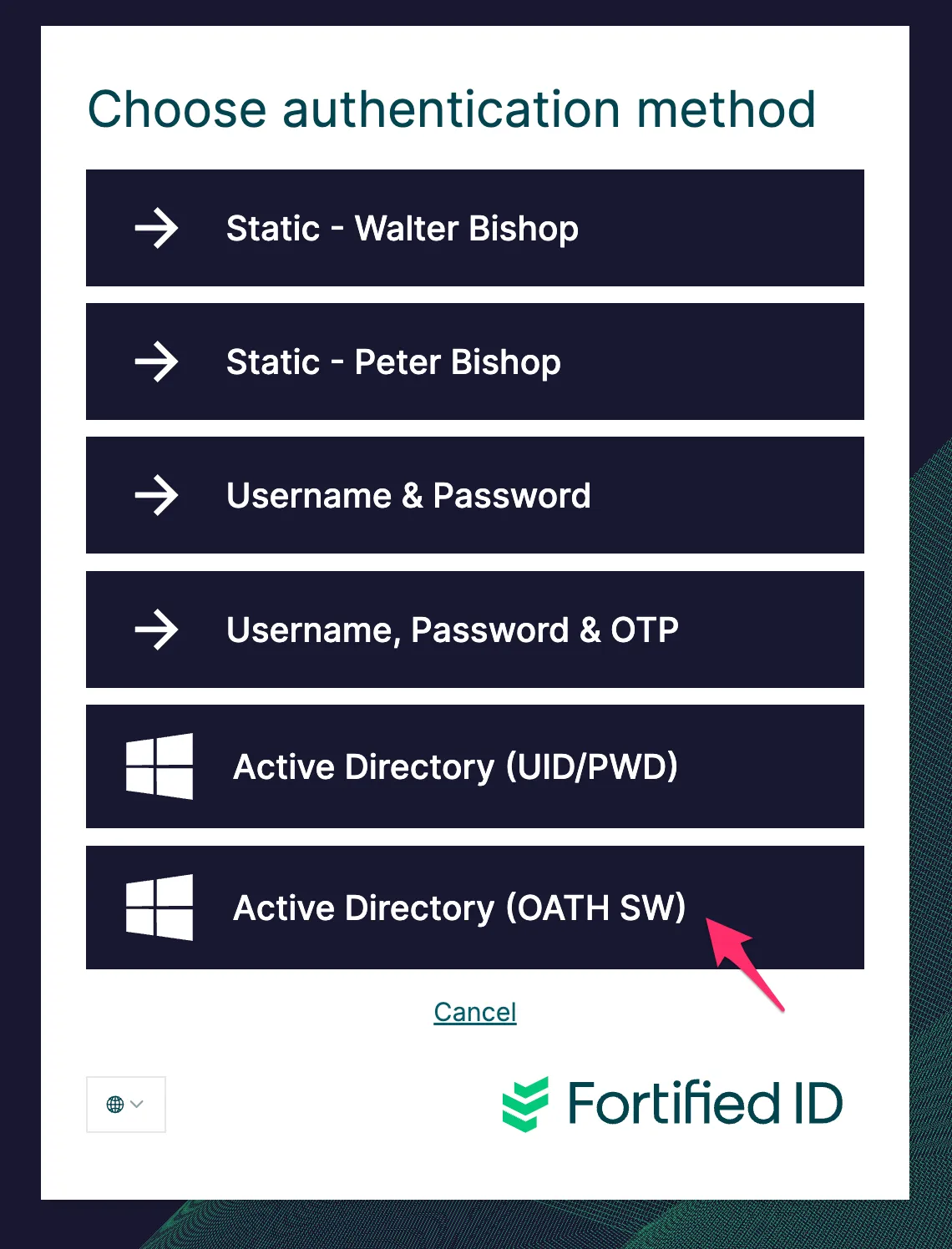
- Click ADD and select the validator you just added, e.g. My Active Directory (UID/OATH SW) (usernameandpassword_1)
- In Display Label type Active Directory (UID/OATH SW)
- In Logo URL, type assets/svg/microsoft.svg
- Click Update and Deploy changes
3.2 Update pipe for credential validator
Section titled “3.2 Update pipe for credential validator”- Click Configuration tab
- Expand SAML -> Default IdP -> Selector -> My Active Directory (UID/OATH SW)
- Click associated pipe, usernameandpassword_1_pipe
- Click the JSON button in upper right corner
-
Copy and overwrite all existing data with the JSON data below.
IMPORTANT. Verify the id of the pipe if you changed it, then you need to update accordingly.{"id": "usernameandpassword_1_pipe","config": {"valves": [{"name": "DumpRequest","display_name": "DumpRequest - Input data from web page","config": {"label": "DumpRequest - Input data from web page"}},{"name": "DumpExports","display_name": "DumpExport - Data collected from previous authenticators","config": {"label": "DumpExport - Data collected from previous authenticators"}},{"name": "LDAPSearch","display_name": "Verify sAMAccountName","enabled": true,"config": {"destination": "my_active_directory_module","base_dn": "DC=company,DC=local","scope": "SUB","filter": "sAMAccountName=${request.identifier}","attributes": []}},{"name": "TokenAuthentication","config": {"otp_length": 6,"otp_parameter": "${request.password}","username_parameter": "${request.identifier}","enable_yubikey": false,"namespace": "sqlexpress"}}]}}
-
- Click Update
- Deploy changes
4. Add an EnrichIdentity flow control
Section titled “4. Add an EnrichIdentity flow control”Add an EnrichIdentity to fetch user data from Active Directory for the user about to login
-
Click Configuration tab
-
Click + to the right of label Authentication Methods
-
Expand Flow Control
-
Scroll down and click Add for EnrichIdentity
-
Change display_name to EnrichIdentity from Active Directory
-
Click the Pipe object for the EnrichIdentity flow control
-
Copy data below and overwrite all existing data in the pipe
&#xNAN;Note! We assume that the pipe id is "enrichidentity_99_pipe", if not, verify the EnrichIdentity object and replace id below.{"id": "enrichidentity_1_pipe","display_name": "EnrichIdentity from Active Directory","config": {"valves": [{"name": "DumpExports","display_name": "DumpExport - Data collected from previous authenticators","config": {"label": "DumpExport - Data collected from previous authenticators"}},{"name": "LDAPSearch","display_name": "Verify sAMAccountName","enabled": true,"config": {"destination": "my_active_directory_module","base_dn": "DC=company,DC=local","scope": "SUB","filter": "sAMAccountName=${exports.username}","attributes": [{"name": "sAMAccountName","multivalue": false},{"name": "mail","multivalue": false},{"name": "displayName","multivalue": false}]}}]}} -
Note! All data received by the LDAP search will be added to Exports, that means it will be available for the SAML Assertion objected.
-
Click Update
4.1 Add EnrichIdentity to your SAML IdP
Section titled “4.1 Add EnrichIdentity to your SAML IdP”- Click Configuration tab
- Expand SAML and click Default IdP
- Click AUTHENTICATION
- Click ADD AUTHENTICATOR
- Select EnrichIdentity from Active Directory and click Add
- Click Update
- Deploy changes
5. Configure SAML SP assertion
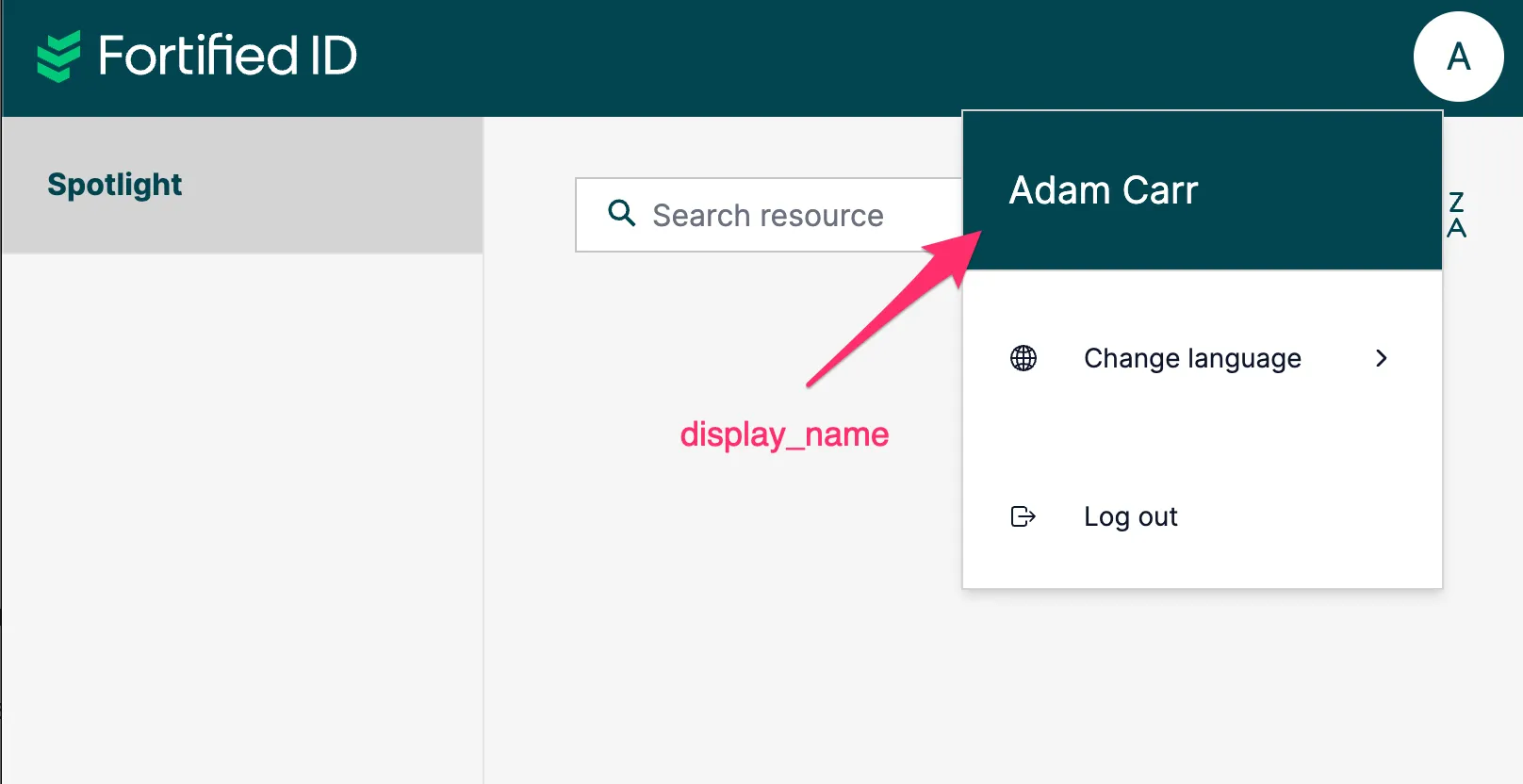
Section titled “5. Configure SAML SP assertion”The SAML SP object on the SAML IdP needs to be configured what nameid and data to return. We use Fortified ID Portal and we will configure nameid tp be sAMAccountName in this scenario and also return display_name used for the avatar in Fortified ID Portal.
- Click Application tab
- Click to edit the Fortified ID Enrollment SAML SP object
- Click NAMEID SETTINGS tab and select
- NameID Format - urn:oasis:names:tc:SAML:1.1:nameid-format:unspecified
- From parameter - sAMAccountName
- Click ATTRIBUTE SETTINGS tab
- Click Add attribut and type
- Name* - display_name
- Name Format - displayName
- Click Update
- Deploy changes
Test the configuration
Section titled “Test the configuration”-
If you browse to Fortified ID Portal you will be redirected to Fortified ID Access. It should look like screenshot below.
-
If you login using one of your Active Directory test account is should look like the screenshot below