
Overview
Overview of how the Fortified ID user interface can be adapted to match an organisation's visual identity.
All Fortified ID frontend applications support organisation-specific branding through an overlay mechanism. An overlay controls logos, favicon, background image, colors, titles, and logo behavior across different flows.
An overlay is a directory of files placed alongside the installation. Together they let you adapt the look and feel of authentication pages, Forms, Portal, Password Reset, and the other applications without modifying application code. New to this, start with Get started.
Overlay files
Section titled “Overlay files”Two files drive everything else. The remaining files are images you reference from them.
| File | Purpose |
|---|---|
css_overrides.css |
Colors, buttons, links, progress bar, header, loader, background. |
ui_config_overrides.json |
Names, titles, logo files, logo sizes, footer link, per-application logo visibility. |
favicon.ico |
Site icon shown in the browser tab. |
logo.svg |
Primary logo. Replaces the built-in logo in the applications that use that slot. |
| Background image | Shown behind authentication pages. Activated from css_overrides.css. |
| Negative logo | White or negative variant for Portal, Forms, and Password Reset. Activated from ui_config_overrides.json. |
To go further than restyling and replace the user interface of an authenticator entirely, see Custom frontend in the Access documentation.
Examples
Section titled “Examples”Authentication selector
Section titled “Authentication selector”The default selector page with annotated overlay areas, and an organisation-specific override.
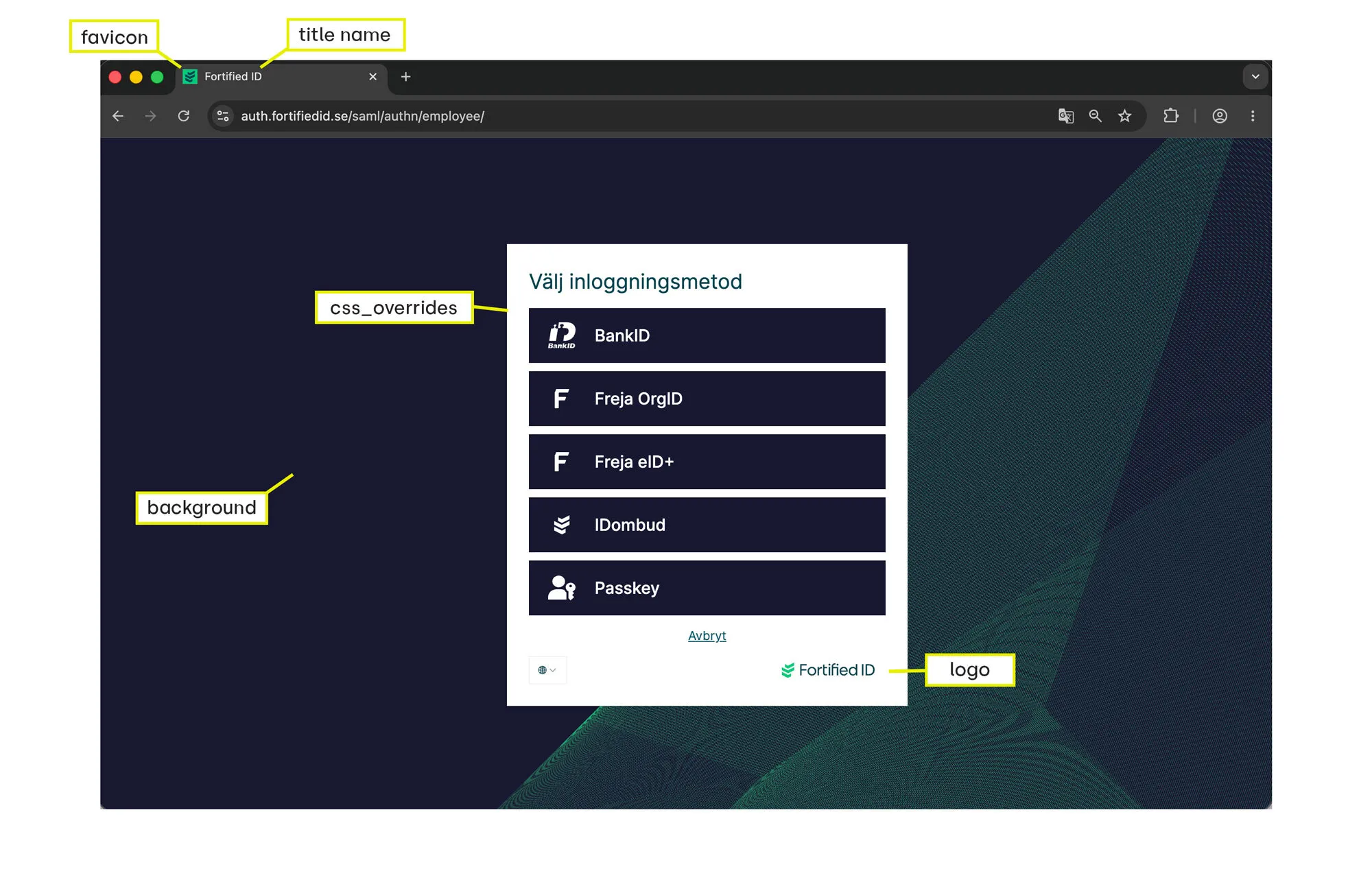
Default authentication selector
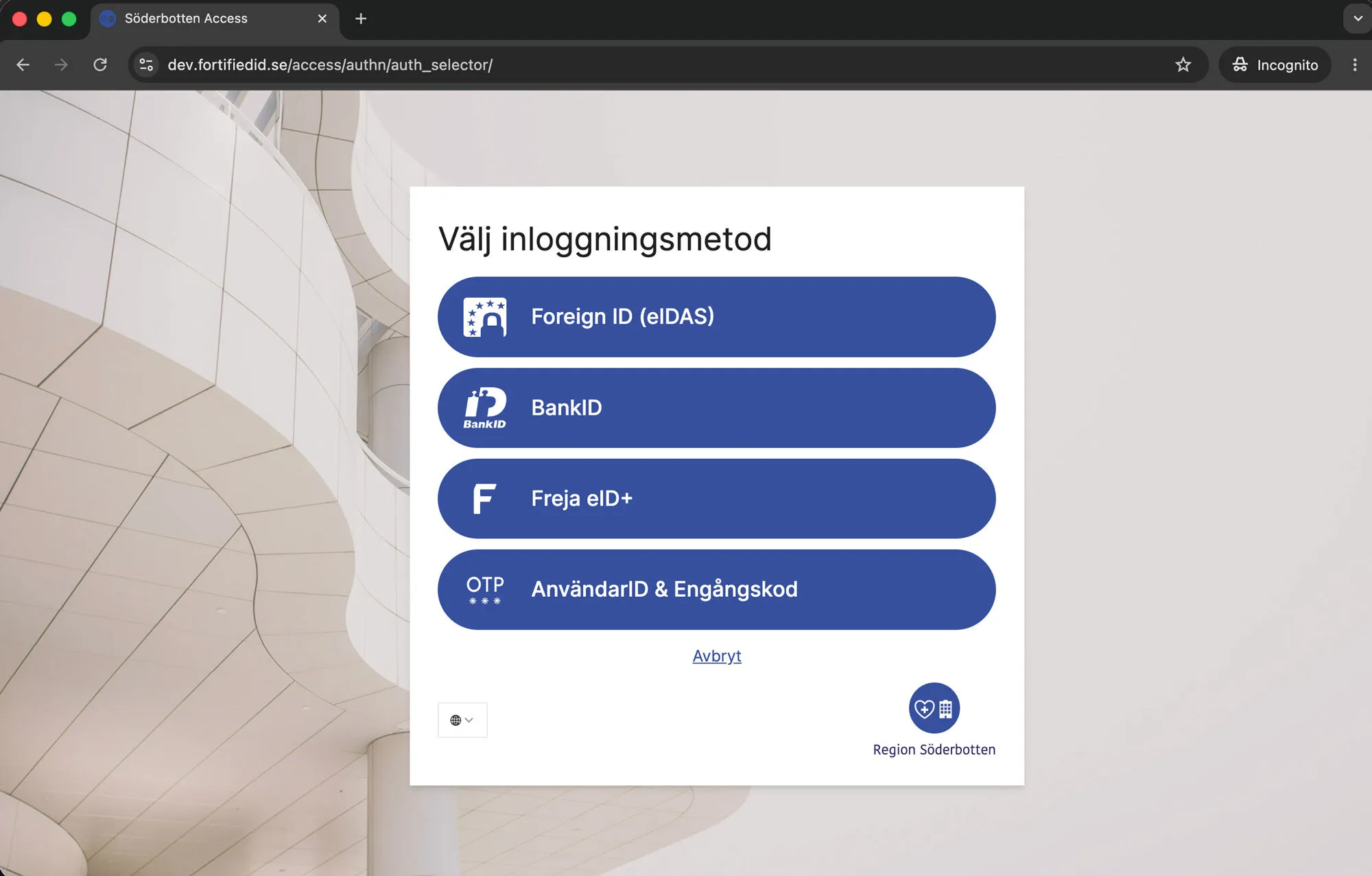
Organisation-specific override
Portal
Section titled “Portal”The default portal page with annotated overlay areas, and an organisation-specific override.
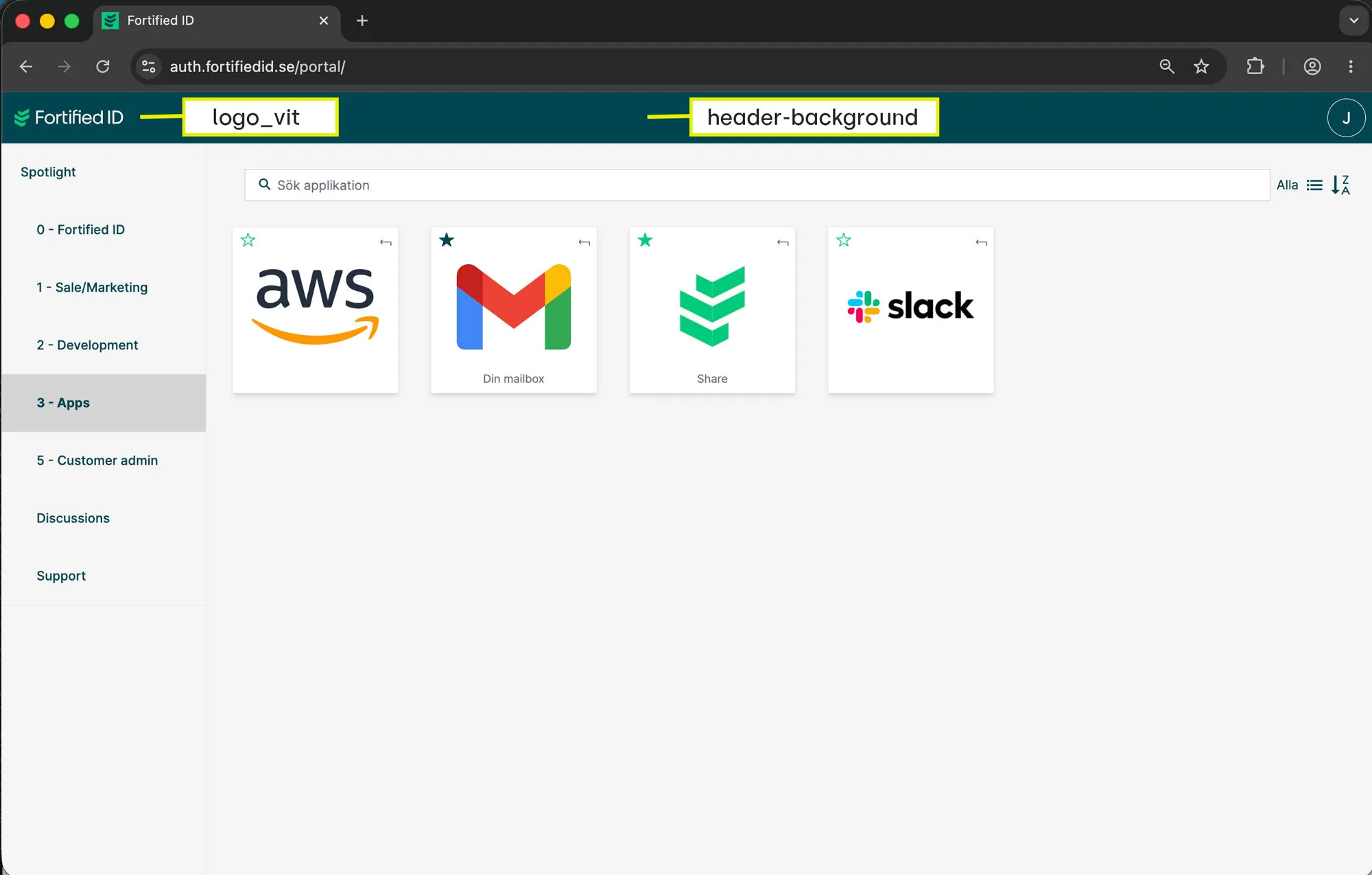
Default portal
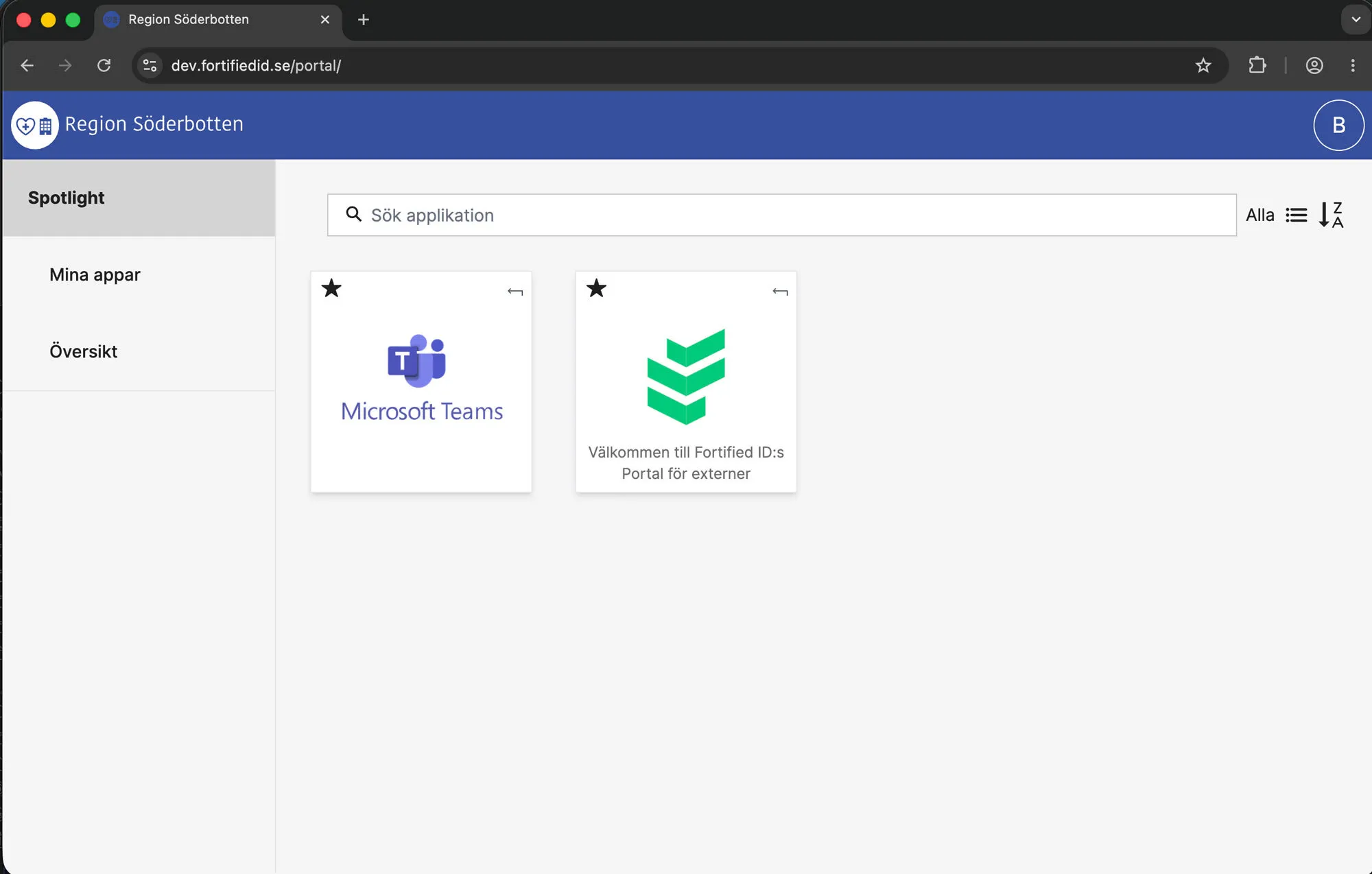
Organisation-specific override