
Add Fortified ID SAML SP app to Access
Scenario
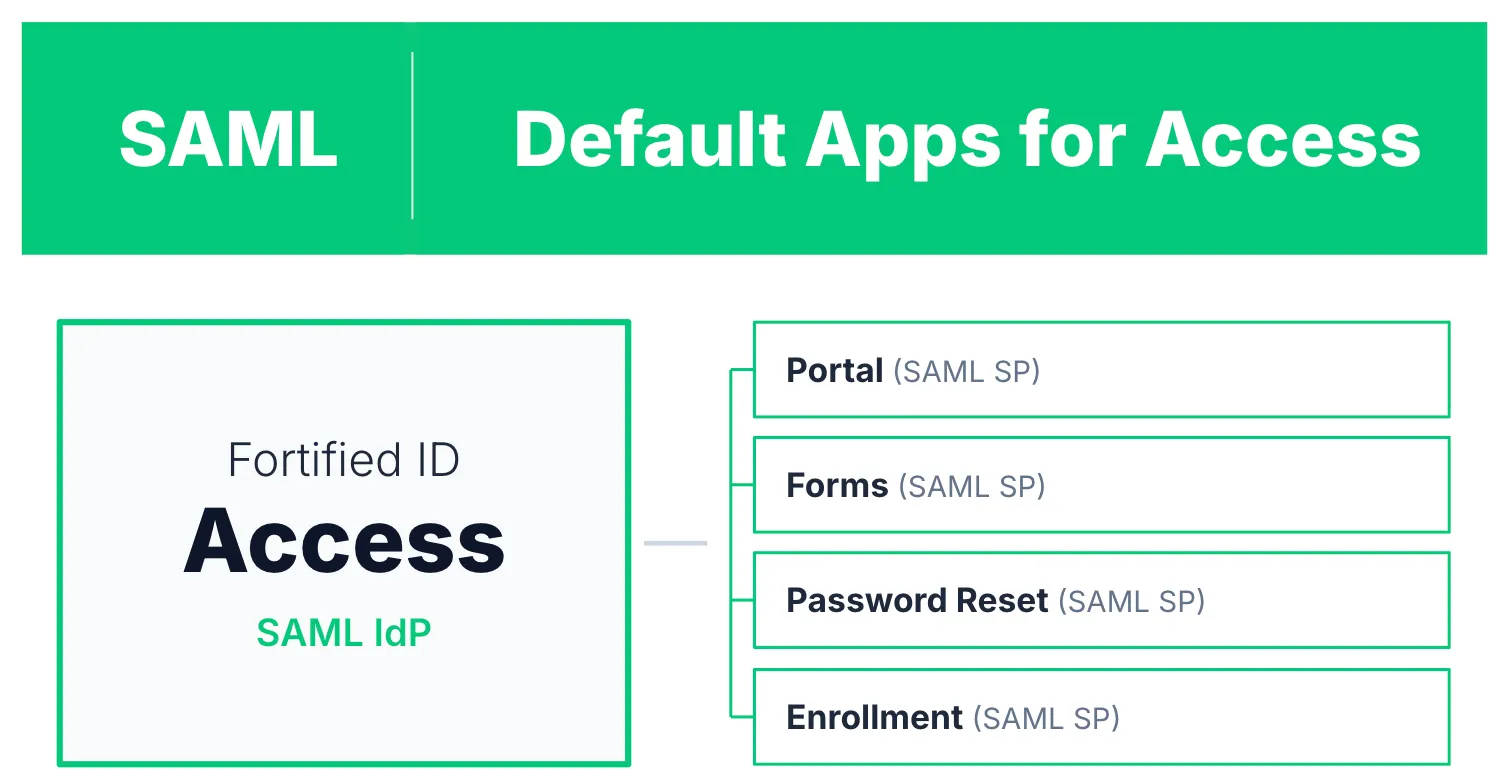
Section titled “Scenario”When installing Management Center, Fortified ID applications that act as SAML SPs, such as Fortified ID Control, Fortified ID Portal, and Fortified ID Password Reset, are ready to use out of the box. They ship with a default configuration that uses the Fortified ID online IdP, which is intended for demo purposes only.
This document describes how to configure a Fortified ID SAML SP application to use Fortified ID Access as the IdP instead.
This use case is relevant for the following Fortified ID applications that act as SAML SPs:
- Fortified ID Control
- Fortified ID Portal
- Fortified ID Password Reset
Note: This use case does not include how to configure Fortified ID Access as a SAML IdP. In this example, Fortified ID Access is used as it is configured by default when installed through Management Center (MC).
Prerequisite
Section titled “Prerequisite”- Fortified ID Management Center with Fortified ID Access and Fortified ID Portal added.
- This setup can be applied to Fortified ID Control, Fortified ID Portal, and Fortified ID Password Reset. In this use case, Fortified ID Portal is used as the example application.
- Both products use their default configuration as the starting point in this use case.
Overview
Section titled “Overview”Fortified ID Portal is used as the example when showing how to add a Fortified ID SAML SP application to the Fortified ID Access SAML IdP. Ports and URLs in this use case use default installation values. If you are configuring another application, such as Fortified ID Control or Fortified ID Password Reset, adjust the values accordingly.
To make Portal use Access as SAML IdP, both products must exchange SAML metadata with each other.
Configuration
Section titled “Configuration”Overview of the steps in this use case
Section titled “Overview of the steps in this use case”- Configure Portal (SAML SP) to trust Access (SAML IdP)
- Configure Access (SAML IdP) to trust Portal (SAML SP) and configure nameid and assertion
1. Configure Portal to trust Access IdP
Section titled “1. Configure Portal to trust Access IdP”There are two files to update to make this happen.
Add a metadata URL key for the Access IdP to Globals
Section titled “Add a metadata URL key for the Access IdP to Globals”-
Browse to Management Center for Portal
-
Click Configuration tab
-
Expand Misc settings
-
Click Globals
-
Add a new key, see example below.
"saml_idp_metadata_url": "https://localhost:8443/saml/metadata/default",- localhost:8443 is the host name and port of Access
- /saml/metadata/ is a hardcoded path
- default is the id of the SAML IdP we are using on Access. In MC for Access, you can find it under Configuration -> Modules -> SAML -> SAML module
-
Click Update
Change the metadata source from the online IdP to the Access IdP
Section titled “Change the metadata source from the online IdP to the Access IdP”-
Browse to Management Center for Portal
-
Click Configuration tab
-
Expand Misc settings
-
Click Auth settings
-
Find key\
"path": "${globals.saml_idp_metadata_path}" -
Replace that key with the value below (which references the global configured in the previous section)
"url": "${globals.saml_idp_metadata_url}" -
Click Update
-
Deploy changes
2. Configure Access to trust Portal
Section titled “2. Configure Access to trust Portal”Add a trust configuration for the Portal application in the trusted applications list for your SAML IdP.
Add trust to Portal SAML SP by creating a SAML SP object
Section titled “Add trust to Portal SAML SP by creating a SAML SP object”- Browse to Management Center for Access
- Click Applications tab
- Click to + Add SAML SP
- In Display name type Fortified ID Portal
- Choose Default IdP
- In Metadata URL type https://localhost:8445/portal/authn/login/metadata
- Click Create SP
- Click on the SAML SP object you just created to edit it
- Click NAMEID SETTINGS tab and select
- NameID Format - urn:oasis:names:tc:SAML:1.1:nameid-format:unspecified
- From parameter - username
- Click ATTRIBUTE SETTINGS tab
- Click Add attribute and enter:
- Name* - display_name
- Name Format - display_name
- Click Update
- Deploy changes
Test the configuration
Section titled “Test the configuration”- Browse to Fortified ID Portal
https://localhost:8445/portal/ - You will now be redirected to Access
- Click for example Peter Bishop
- You will be redirected back to Portal and logged in as Peter Bishop.
Additional information
Section titled “Additional information”Add some roles to Peter Bishop
Section titled “Add some roles to Peter Bishop”-
Browse to Management Center for Access
-
Click Configuration -> SAML -> Default IdP -> Selector -> Static SAML 2
-
Under roles, add 2 more roles. Result should look like:
"roles": ["Slack","Office365","Con artist","app1","app3"] -
Deploy changes.
-
Log out as Peter Bishop and login again in Portal