
Generate eduPersonPrincipalName (eppn) and store in Google
Scenario
Section titled “Scenario”To make authentication to DNP work, the IdP must send an eppn value to DNP. The eppn value must be unique for each individual over time.
In this scenario, Fortified ID will automate the generation of eppn for each individual and store the value on the user object in Google.
We recommend using Forms for this configuration, although it may be added to Integrity/Access as well.
! This scenario could easily be copied and modified to fulfill other DNP eppn scenarios.
- Store the generated value in another user data source, such as Active Directory, Entra ID, other LDAP or SQL.
Prerequisite
Section titled “Prerequisite”There are some prerequisite for this use case. You will need the following:
- Google administration rights.
- Outgoing TCP/443 communication. To be able to communicate with Google.
- Forms installed.
Download and add configuration
Section titled “Download and add configuration”Remember that this use case does not describe installation of the product. Product is expected to be installed in advance.
- Download ZIP containing configuration for Forms
- Click USE_CASE_LINK to download customer folder for Forms.
- Add Forms configuration to your environment.
- Rename the existing customer folder to customer_ORG.
Add the customer folder to your \..\fortifiedid\forms\ folder.
- Rename the existing customer folder to customer_ORG.
Update the Google Workspace configuration
Section titled “Update the Google Workspace configuration”Setup API for user lookup
Section titled “Setup API for user lookup”- Login to Google Workspace admin console (https://admin.google.com) as an administrator for your domain
- Open the API console (https://console.developers.google.com)
- Create a new project. Name the project UserApiLookupsFor<Customer>. (Replace <Customer> with a customer identifier. Can be any string.)
Leave the rest with default values. - Open (select) the newly created project
- Select Enabled APIs & services
- Click + Enable APIS and services
- Search for Admin SDK API
- Select Admin SDK API
- Click Enable
- Click on Admin SDK API
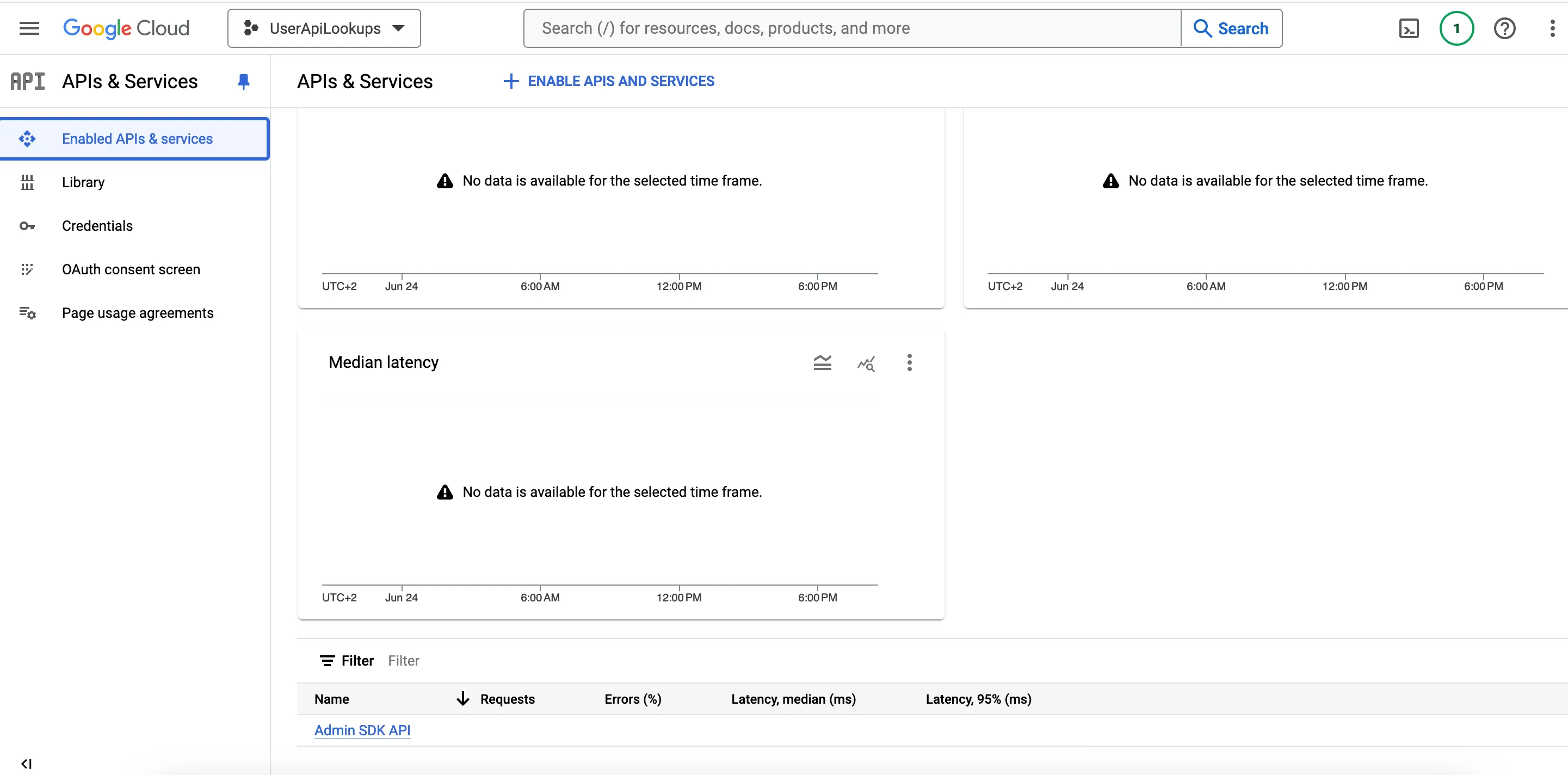
- Click Credentials
- Click Manage Service Accounts
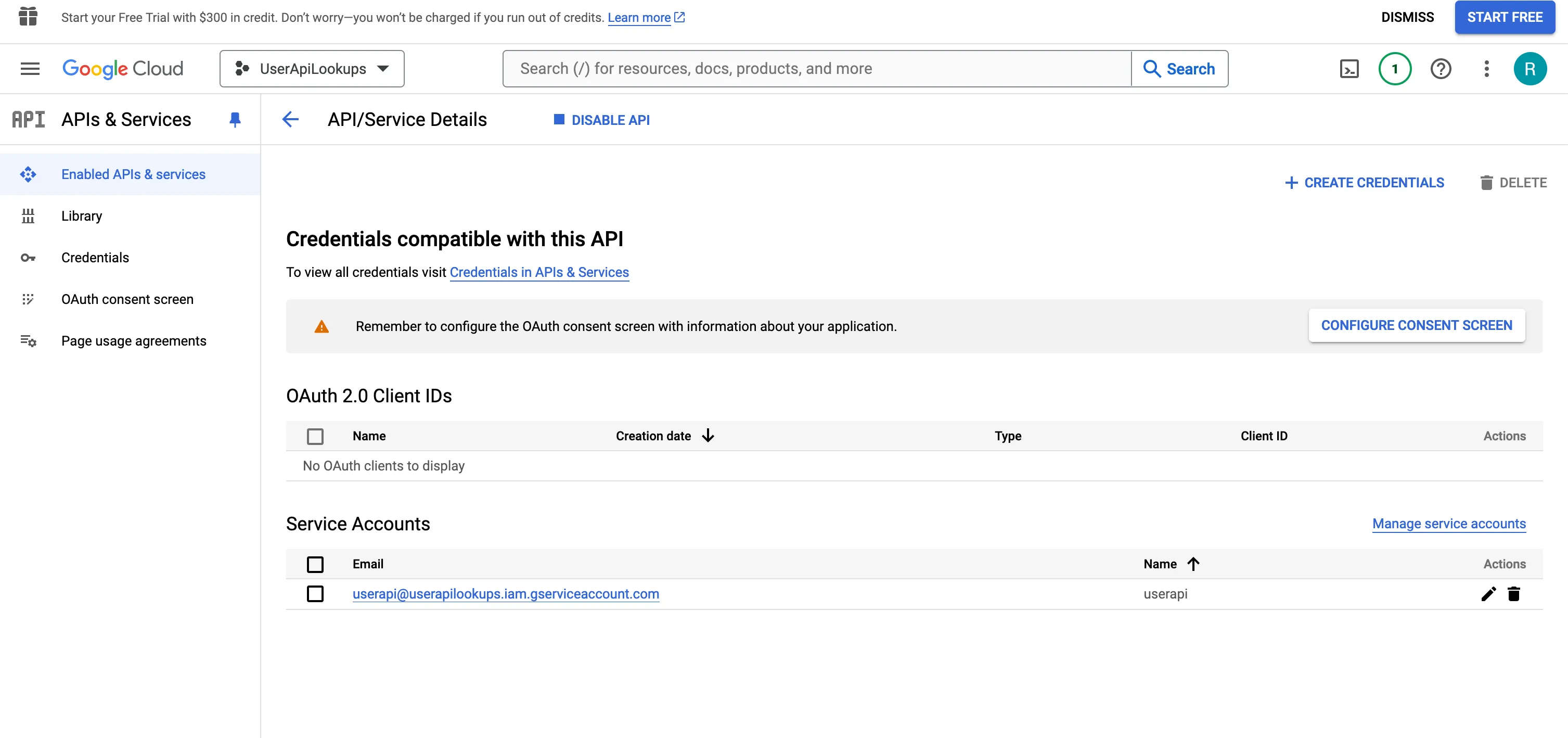
- Click +Create Service Account
- Enter a name, userapi. Create
- Click on the newly created Service Account
- Click Keys
- Click Add key -> Create new key
- Select p12 format
- Copy the private key password
- Rename the downloaded p12 file to google_jwt_signer.p12
- Place the p12 file on the Forms server. Remove the file from your client.
- Copy the service account email address value (for example [email protected])
- Open the admin console (https://admin.google.com)
- Navigate to Account->Admin roles
- Click Assign Admin in the row representing the role User Management Admin
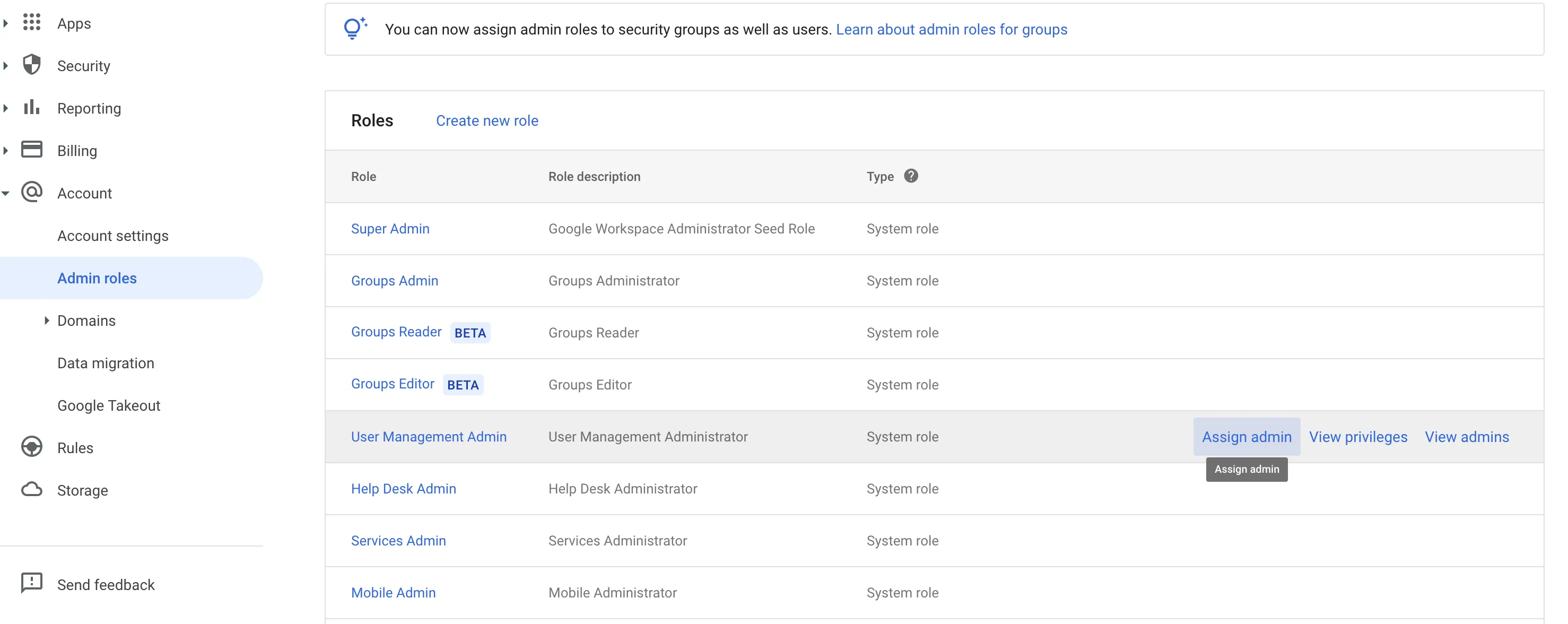
- Click Assign Service account
- Enter the service account email address
- Click ADD
Add custom attribute for eppn
Section titled “Add custom attribute for eppn”- From the admin console, navigate to Directory->Users
- Select More options->Manage custom attributes
- Add a new custom attribute with category = FortifiedID and name = eppn.
Update the configuration to map to your environment
Section titled “Update the configuration to map to your environment”Place the file google_jwt_signer.p12 in the folder customer/config/resources/certificates/Google/. (Replace if a file already exists)
Open the file customer/config/globals.json. Change according to the instructions below.
Set the proper values for your environment.
Set domain to your Google DNS domain.
Set serviceaccount to the value fetched in previous step.
Example:
"google": { "domain": "fortifiedid.se", "custom_schema_name" : "FortifiedID", "custom_update_structure": { "customSchemas": { "FortifiedID": { "eppn": "{{{request.eppn}}}" } } } },- keystore->google
Change the passwords (ssl_keystore_password and ssl_key_password) to the private key password fetched in previous step.
Example:
"google": { "ssl_keystore_path": "${globals.file_path.base_dir}/config/resources_internal/certificates/Google/google_jwt_signer.p12", "ssl_keystore_password": "Summer2025rr3", "ssl_key_alias": "privatekey", "ssl_key_password": "Summer2025rr3" }Save the file.
Start the service.
Verify startup by viewing the log files. Any error - fix accordingly.
Check that your google accounts were updated with the eppn value.
The eppn automation job will run on startup and then every 10 minutes.
Due to Google API limitations, only 10 accounts are updated during every automation job run.
You can modify the schema interval in scheduler.json. Change the cron job syntax to suite your needs.
&#xNAN;"run_on_start": true,
&#xNAN;"schedule": "0 0/15 * * * ?",