
Workforce - Use an eID as secondary login method
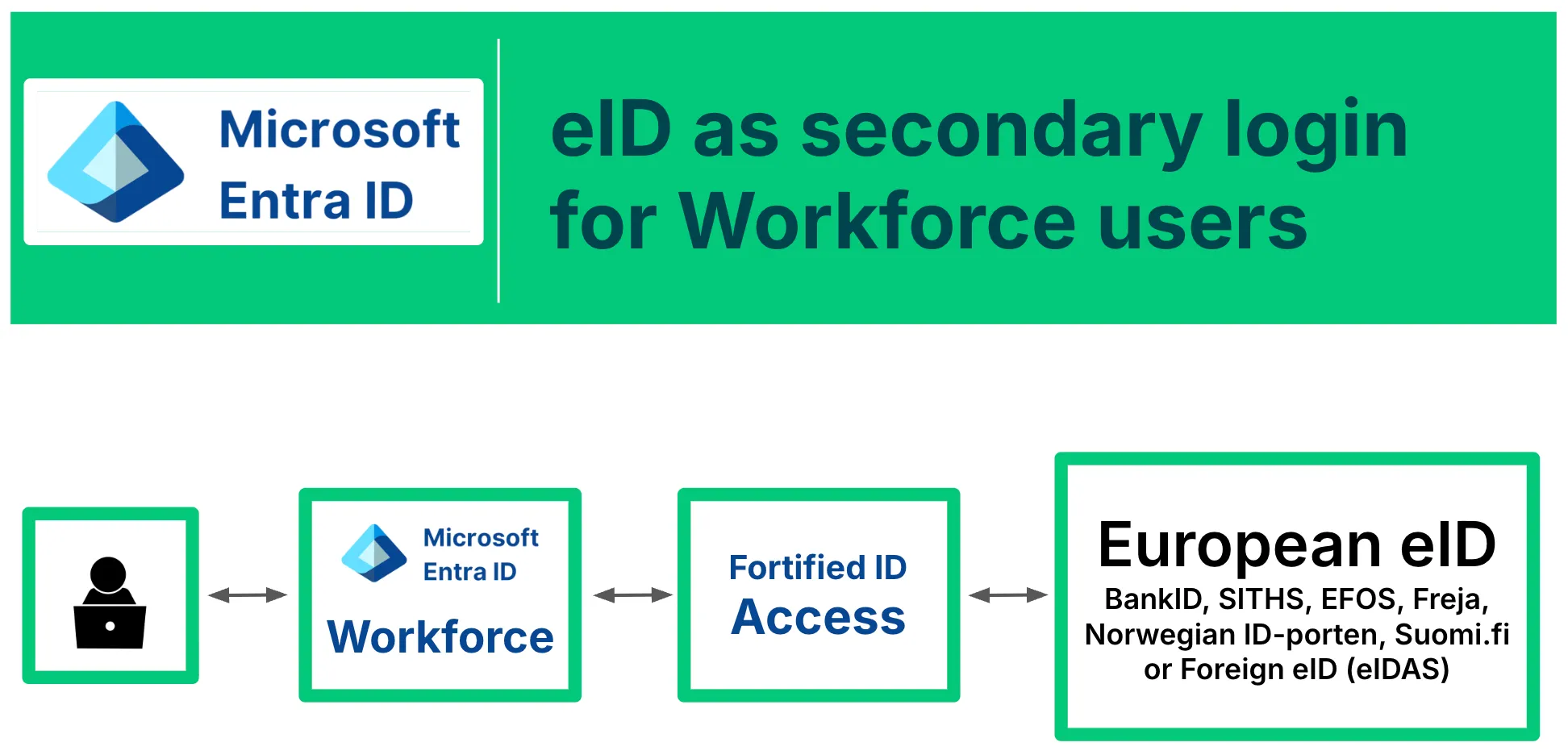
Scenario
Section titled “Scenario”Note. In this scenario a European eID will be the secondary login method. The primary login method is done using Entra credentials.
In this scenario, Entra ID (formerly known as Azure Active Directory), use Integrity as an EAM (external authentication method). With this setup, it's possible to use eIDs such as BankID, SITHS, EFOS, Freja, Norwegian ID-porten, Foreign eID (eIDAS) or Suomi.fi to perform MFA authentication to Entra.
With this setup, it is also possible to use eIDs to fulfill Entra Conditional Access policies.
In the use case described below, BankID is used as the eID method.
Integrity will perform a lookup against Entra to get the value of the mfa identifier (such as social security number).
The identifier of the result of the BankID authentication will be compared to the mfa identifier value, to verify that the step-up was performed by the correct person.
This scenario could easily be copied and modified to fulfil:
- Using other eID methods for MFA, such as SITHS, EFOS, Freja, Norwegian ID-porten, Foreign eID (eIDAS) or Suomi.fi
Prerequisite
Section titled “Prerequisite”There are some prerequisite for this use case. You will need the following:
- BankID authenticator. A working BankID authenticator (internal or broker) is required for this example.
- Entra ID Graph API connection. To be able to fetch the social security number from Entra ID.
- Entra ID (Azure AD) administration rights. Azure P1 license, or higher.
- Host (DNS) name of the Integrity service (external access)
- Social security number (personnummer) stored on the Entra ID user object. The attribute name holding the value is also required.
- Outgoing TCP/443 communication. To be able to communicate with Entra ID services.
Configuration
Section titled “Configuration”Add global parameter for Entra
Section titled “Add global parameter for Entra”Add the global parameter below, and make sure it corresponds to the property in Entra ID containing the social security number.
"entra_mfa_identifier_attribute": "jobTitle"Configure the "pre-authentication" enrichment
Section titled “Configure the "pre-authentication" enrichment”- Locate the Authentication methods menu on the left-hand side in management center
- Click + to open the panel for Add Authenticator method
- Locate and add EnrichIdentity
- Set a suitable display name by modifying
display_nametoEnrichIdentity for EAM - Expand the associated pipe and display it in json mode
- Replace the valves in the current pipe with these
{ "name": "CreateItem", "config": { "id": "data_holder", "properties": {} } }, { "display_name": "ParseJwt - id_token_hint", "description": "id_token_hint", "name": "ParseJwt", "config": { "jwt_src": "${request.id_token_hint}", "internal_http_destination": "default", "jwks_endpoint": "https://login.microsoftonline.com/common/discovery/v2.0/keys" } }, { "display_name": "EntraIDGetUser - item.oid", "name": "EntraIDGetUser", "config": { "user_id": "${item.oid}", "select": "${globals.entra_mfa_identifier_attribute}" } }, { "display_name": "Rename mfa_identifier_attribute --> mfa_identifier", "name": "ItemPropertyRename", "config": { "old_name": "${globals.entra_mfa_identifier_attribute}", "new_name": "mfa_identifier" } }, { "display_name": "ExportsPut mfa_identifier", "name": "ExportsPut", "config": { "name": "mfa_identifier", "value": "${item.mfa_identifier}" } }, { "display_name": "ExportsPut sub", "name": "ExportsPut", "config": { "name": "sub", "value": "${item.sub}" } }, { "config": { "src": "${request.claims}", "merge_with_current_item": true, "unescape": true }, "name": "JsonToItems" }, { "config": { "name": "acr", "value": "${item.id_token_acr_values[0]}" }, "display_name": "ExportsPut acr", "name": "ExportsPut" }Configure the "post-MFA" authentication
Section titled “Configure the "post-MFA" authentication”- Locate the Authentication methods menu on the left-hand side in management center
- Click + to open the panel for Add Authenticator method
- Locate and add Auth controller
- Set a suitable display name by modifying
display_nametoPost MFA Validation - Add the following configuration to the auth controller as failed_redirect
"failed_redirect": [ { "pattern": ".*Step-up was performed by other person.*", "target": "/error" } ]- Add the following configuration as exports
"exports": [ { "name": "amr", "value": "swk" } ]- Replace the valves in the current pipe with this
{ "exec_if_expr": "exports.mfa_identifier[0] != exports.personalNumber", "name": "FlowFail", "config": { "message": "Step-up was performed by other person." } }Configure Access as an OIDC OP for Entra
Section titled “Configure Access as an OIDC OP for Entra”- Locate the OIDC menu on the left-hand side in management center
- Click + Add Provider
- Select Implicit Flow
- Give the flow a suitable display name, such as OIDC OP Entra EAM
- Click Create Provider
- This step might not be necessary: Add id_token_signing_alg_values_supported to the discovery_meta object. This could be pasted below "claims_supported".
"id_token_signing_alg_values_supported": [ "RS256" ]- Switch to "Panel view" by clicking the JSON button
- Go to the AUTHENTICATION tab
- Click + Add Authenticator to add the EnrichIdentity for EAM authenticator as the first in chain
- Click + Add Authenticator to add the BankID authenticator (pre-req) as the next in chain
- Click + Add Authenticator to add the Post MFA Validation authenticator as the last in chain
- Delete any other authenticators showing in the chain
- Click Update and then Deploy the configuration
- Go to the GENERAL tab
- Click the link for the Discovery Endpoint and it will open in a new tab.
- Note the value for
authorization_endpoint, as it will be used in a later step.
Configure Relying Party for Entra ID
Section titled “Configure Relying Party for Entra ID”- Locate the OIDC menu on the left-hand side in management center
- Click + Add Relying Party
- Give the RP a suitable name, such as EntraID RP EAM
- Select the OP to be used by this RP, such as OIDC OP Entra EAM
- Click Create Relying Party
- Go to the GENERAL tab
- Note the value for
Client ID, as it will be used in a later step. - Go to the ID TOKEN tab
- Add
scope,nonce,acrandamras the example below. NOTE, keep the current value foriss
{ "iss": "${globals.default_login_location}/oidc/oidc_op_1", "aud": "${request.client_id}", "sub": "${exports.sub}", "scope": "${request.scope}", "nonce": "${request.nonce}", "acr": "${exports.acr}", "amr": [ "${exports.amr}" ]}- Click Update and then Deploy the configuration
Add Integrity as an Entra external authentication method (EAM)
Section titled “Add Integrity as an Entra external authentication method (EAM)”Create App Registration
Section titled “Create App Registration”- Login to Entra ID as an administrator
- Select App Registrations
- Click New Registration
- Enter a name of the app registration, BankID EAM
- Select Accounts in this organizational directory only (<tenant_name> only - Single tenant)
- Add a redirect uri
- Platform = web
- Value = This is the value for the
authorization_endpointpreviously noted.
example:https://access.company.org/access/authn/oidc_op_1
- Register
- Click on the App Registration in the list
- Select API permissions
- Add these permissions:
- In the Overview section, copy these values (they will be used in later steps):
- Application (client) ID
- Object ID
- Directory (tenant) ID
Add external authentication method
Section titled “Add external authentication method”- Select Authentication methods
- Click Add external method
- Enter:
- Name = BankID
- Client ID = This is the value for the
Client IDpreviously noted.
example:coaaaPj8M3FEqDrJKaU739DBpE0dozF6w - Discovery endpoint = This is the value for the
Discovery endpointpreviously referred.
example:https://access.company.org/oidc/oidc_op_1/.well-known/openid-configuration/ - App ID =
<The Application (client) ID value copied in previous step above.>
- Save
- Grant admin consent
- Enable the external authentication method.
For testing purposes, it is recommended to set the target only to specific test users.
Test the configuration
Section titled “Test the configuration”Login to an Entra resource with BankID as the MFA method
Section titled “Login to an Entra resource with BankID as the MFA method”- Open a browser
- Browse to a Azure resource which require MFA (such as portal.azure.com)
- Enter your Entra username and password
- You should now be prompted to fulfill MFA with an external method. Example:
- You should be redirected to Integrity and then to Entra
- Fulfill BankID authentication
- You should now be redirected back to Entra. If successful, you have successfully fulfilled the MFA requirement and the Azure resource is presented.