
HTTPS
Sammanfattning av användningsfall
Scenario
Section titled “Scenario”If SSL/TLS should be use with a Fortified ID product, a keystores must be configured containing keys and certificates to use and/or trust.
Two types of key-/truststores are supported:
- Java Keystore format (
"JKS") - PKCS#12 (
"PKCS12")
Commands to create either of them will be shown below, but in the configuration examples below we will use a Java Keystore format ("JKS").
The examples will only be parts of the configuration.
Prerequisite
Section titled “Prerequisite”There are some prerequisite for this use case. You will need the following environment:
- Basic knowledge about configuration of the product and the file structure.
- The Fortified ID product of your choice installed
Certificate recommendation
Section titled “Certificate recommendation”We recommend the use of a keystore create from external CA like Digicert or internal PKI environment!
If that is not available or for testing, you can create a self signed using one of the supported methods below.
Create self-signed certificate
Section titled “Create self-signed certificate”Java Keystore format ("JKS")
Section titled “Java Keystore format ("JKS")”-
Open a command prompt
-
Change directory to the bin folder of the installed JRE that came with the product.
ex. ..\FortifiedID\integrity\web -
Run the following command to create the certificate store
Terminal window jre\bin\keytool -genkey -keyalg RSA -alias server_https -keystore selfsigned_https.jks -validity 365 -keysize 2048 -
Enter keystore password, we will use password as password for the examples.
-
We will fill in information in the following questions, you can enter the information of your choice.
- What is your first and last name?
web - What is the name of your organizational unit?
test - What is the name of your organization?
fortifiedid - What is the name of your City or Locality?
stockholm - What is the name of your State or Province?
stockholm - What is the two-letter country code for this unit?
se - What is the name of your organization?
y
- What is your first and last name?
-
Move the certificate to your installed product "config" folder.
PKCS#12 ("PKCS12")
Section titled “PKCS#12 ("PKCS12")”If you would like to use PKCS#12 certificate make sure to change according the modules documentation section.
-
You need to have openssl installed to run the following command
-
Change directory to the folder where you have openssl or add the path to the command.
-
Run the following commands to create the certificate store
Terminal window openssl req -x509 -newkey rsa:4096 -keyout key.pem -out cert.pem -days 365 -nodes -subj /CN=web.fortifiedid.seopenssl pkcs12 -export -in cert.pem -inkey key.pem -out selfsigned.p12 -name "server_https"
General module configuration to use Https
Section titled “General module configuration to use Https”In this section we will look at general module configuration needed for SSL/TLS .
See the modules section in the documentation for more details.
- http_port : port that should be used
- http_use_ssl : enable SSL/TLS for the port, true / false
- http_keystore_ref : --- add text ---
- http_keystore_type : Keystore type PKCS12 or JKS, default PKCS12
- http_keystore_alias : Keystore alias
- http_keystore_password : Key password
Configuration examples
Section titled “Configuration examples”Hello module in Integrity Web
Section titled “Hello module in Integrity Web”The easiest way to test SSL/TLS is to use the Hello module in Integrity Web.
This is the only complete configuration example in this document.
-
Make sure that you have the certificate in the correct folder.
-
Change the path and port to suit your environment.
-
Create / modify the configuration file
{"modules": [{"name": "HelloWorld","config": {"http_port": 8443,"http_use_ssl": true,"http_keystore_ref": {"type": "JKS","path": "../customer/config/selfsigned_https.jks","password": "password"},"http_keystore_type": "JKS","http_key_alias": "server","http_key_password": "password"}}]} -
Surf to https://<address of your server>:8443,
-
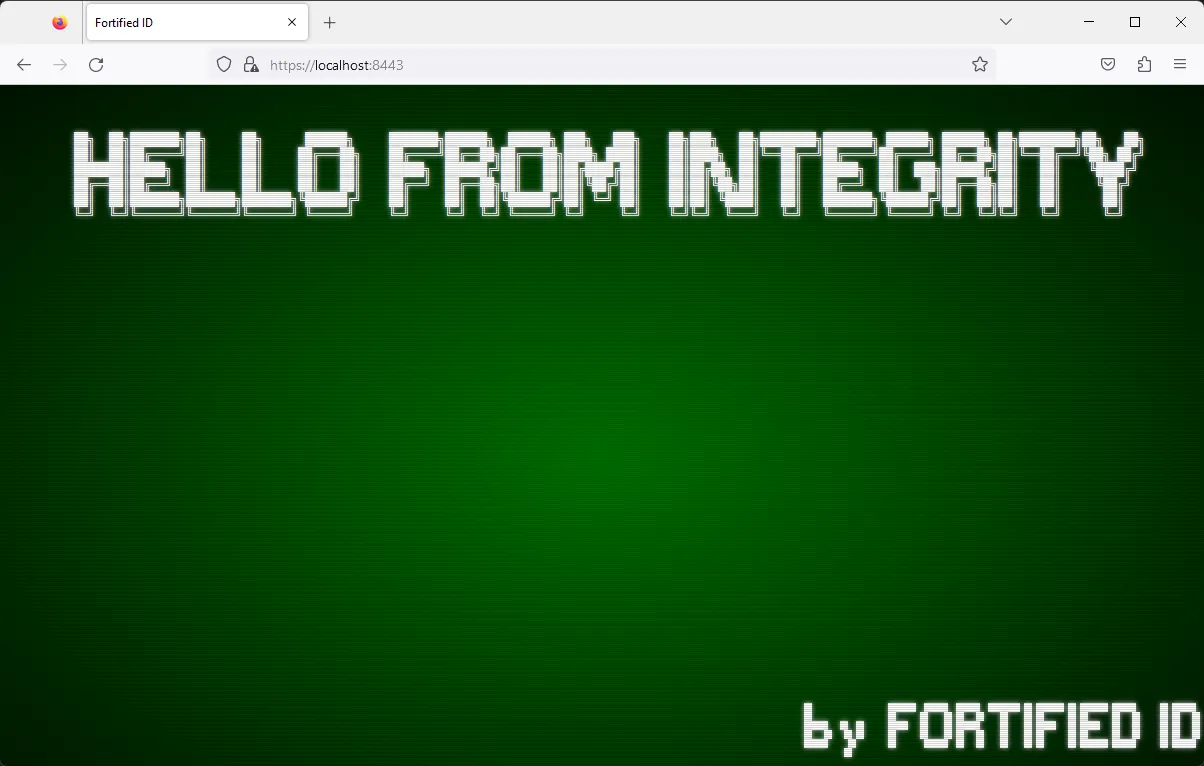
You should see the following page
-
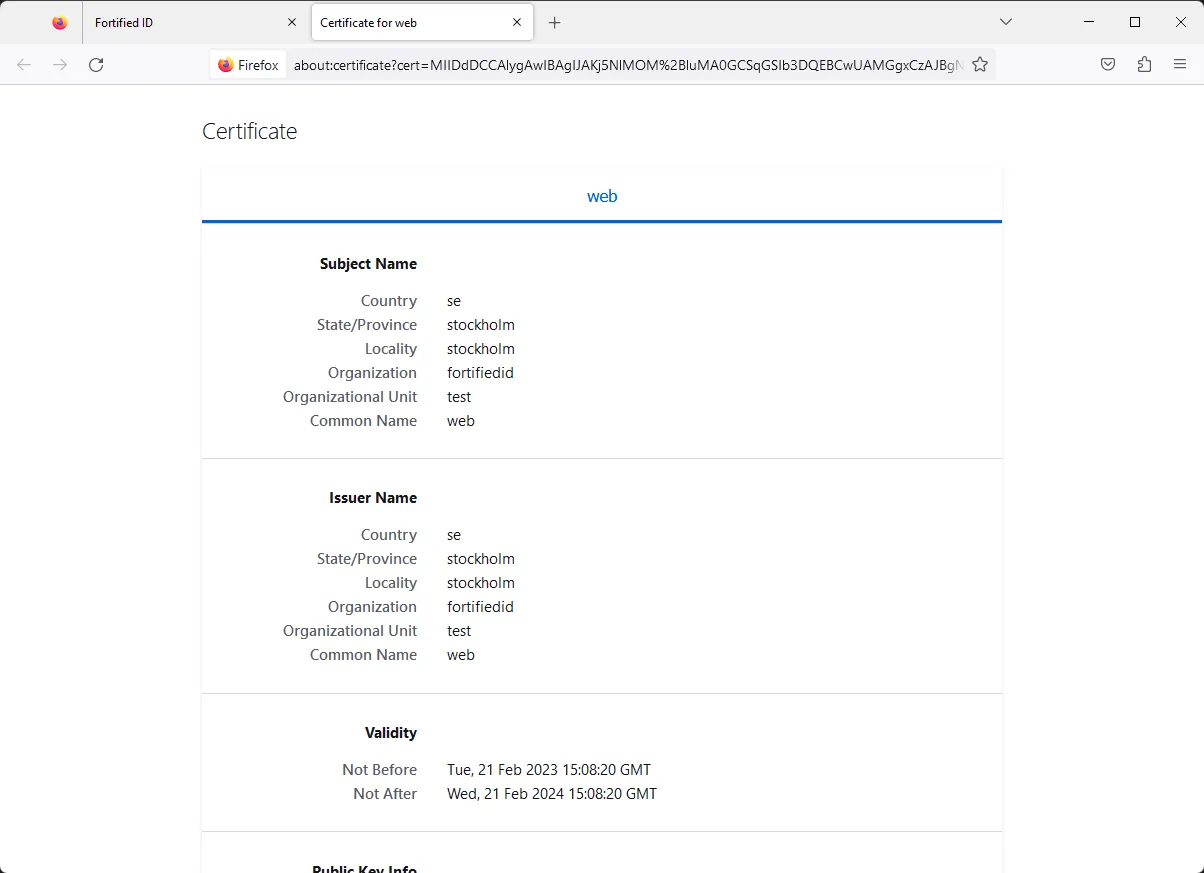
Verify the certificate information, if you used the same settings as in the example to create a Java Keystore above, the certificate would look similarly to the image below.
-
Recommendation: in more complex configurations where the certificate will be used in multiple places in the configuration, we recommend to use the "Globals" technique. In the example below we have used a mix of "globals" and values in the module.
This example will give the same result as the example above.{"globals": {"keystores": {"server": {"type": "JKS","path": "../customer/config/selfsigned_https.jks","password": "password"}},"modules": [{"name": "HelloWorld","config": {"http_port": 8443,"http_use_ssl": true,"http_keystore_ref": "${globals.keystores.server}","http_keystore_type": "${globals.keystores.server.type}","http_key_alias": "server_https","http_key_password": "password"}}]}}
Auth module
Section titled “Auth module”Add SSL/TLS to the Auth module. The examples below is only parts of the configuration.
-
Add or modify the globals part of the configuration file with the following example,
change the path and port to suit your environment........"globals": {"keystores": {"server": {"type": "JKS","path": "../customer/config/selfsigned_https.jks","password": "password","alias": "server_https"}}},....... -
Add the following in the "config" section of the Auth module, change the configuration to suit your environment.
......."config": {"http_port": 8443,"http_use_ssl": true,"http_keystore_ref": "${globals.keystores.server}","http_keystore_type": "${globals.keystores.server.type}","http_key_alias": "${globals.keystores.server.alias}","http_key_password": "${globals.keystores.server.password}",....... -
Verify the configuration
OIDCModule
Section titled “OIDCModule”The examples below is only parts of the configuration.
-
Add or modify the globals part of the configuration file with the following example,
change the path and port to suit your environment........"globals": {"keystores": {"server": {"type": "JKS","path": "../customer/config/selfsigned_https.jks","password": "password","alias": "server_https"}}},....... -
Add the following in the "providers" section of the OIDCModule, change the configuration to suit your environment.
......."providers":[{"http_port": 8443,"http_use_ssl": true,"http_keystore_ref": "${globals.keystores.server}","http_keystore_type": "${globals.keystores.server.type}","http_key_alias": "${globals.keystores.server.alias}","http_key_password": "${globals.keystores.server.password}",....... -
Verify the configuration
Portal module
Section titled “Portal module”The examples below is only parts of the configuration.
-
Add or modify the globals part of the configuration file with the following example,
change the path and port to suit your environment........"globals": {"keystores": {"server": {"type": "JKS","path": "../customer/config/selfsigned_https.jks","password": "password","alias": "server_https"}}},....... -
Add the following in the "config" section of the Portal module, change the configuration to suit your environment.
......."config": {"http_port": 8443,"http_use_ssl": true,"http_keystore_ref": "${globals.keystores.server}","http_keystore_type": "${globals.keystores.server.type}","http_key_alias": "${globals.keystores.server.alias}","http_key_password": "${globals.keystores.server.password}",....... -
Verify the configuration
Enrollment modules - OathSwEnrollment and OathHwEnrollment
Section titled “Enrollment modules - OathSwEnrollment and OathHwEnrollment”The examples below is only parts of the configuration.
-
Add or modify the globals part of the configuration file with the following example,
change the path and port to suit your environment........"globals": {"keystores": {"server": {"type": "JKS","path": "../customer/config/selfsigned_https.jks","password": "password","alias": "server_https"}}},....... -
Add the following in the "config" section of the OathSwEnrollment and OathHwEnrollment modules, change the configuration to suit your environment.
......."config": {"http_port": 8443,"http_use_ssl": true,"http_keystore_ref": "${globals.keystores.server}","http_keystore_type": "${globals.keystores.server.type}","http_key_alias": "${globals.keystores.server.alias}","http_key_password": "${globals.keystores.server.password}",....... -
Verify the configuration