
External - Login with European eID (SAML)
Scenario
Section titled “Scenario”In this scenario, Microsoft Entra External (formerly known as Azure B2C) uses Fortified ID Access as an external SAML IdP to support authentication using a European eID. With this setup, it's possible to use eIDs such as BankID, SITHS, EFOS, Freja, Norwegian ID-porten, Foreign eID (eIDAS) or Suomi.fi to perform authentication (sign in) and/or sign up to Entra External.
In this scenario Entra will act as an SAML SP to Fortified ID that acts as an SAML IdP.
Entra and Fortified ID Access also support this scenario using OIDC instead, click following LINK.
In the use case Foreign eID is used as the eID method and the Swedish test node at Sweden Connect that host a number of test users.
Working with an External IdP there are often two things to solve:
- Sign in (authenticate to a published application)
- Sign up (create an external account in the Entra External tenant)
In this use case we will describe Sign in.
When it comes to Sign up there can be several way two solve that, for example:
- The users are already created.
- Use the built-in Entra Sign up.
- The added application will handle this.
- Fortified ID Access handles the creation of the account.
Contact us for more information regarding Sign up.
Prerequisite
Section titled “Prerequisite”There are some prerequisite for this use case. You will need the following:
- Fortified ID Access setup with eID of your choice
- This use case assumes that you have Fortified ID Access set up to support authentication of users with an eID.
- You have configured Fortified ID Access as an SAML IdP
- Entra ID
- Entra External tenant
- Administration tenant rights, e.g. Global administrator role
- Host (DNS) name of the Fortified ID Access service (external access)
Configuration of Entra External tenant
Section titled “Configuration of Entra External tenant”Login to your tenant
Section titled “Login to your tenant”- Browse to https://entra.microsoft.com/
- Login to your Entra External tenant
Add Fortified ID Access as an SAML Identity Provider (IdP)
Section titled “Add Fortified ID Access as an SAML Identity Provider (IdP)”Prerequisite
Section titled “Prerequisite”- You need to have Fortified ID Access running with one or more eID authenticators such as BankID, Freja or Foreign ID.
- You need the XML metadata of your Fortified ID Access IdP available.
- You need to have your IdP available on internet so Entra can communicate with it.
Configuration at your Entra External tenant
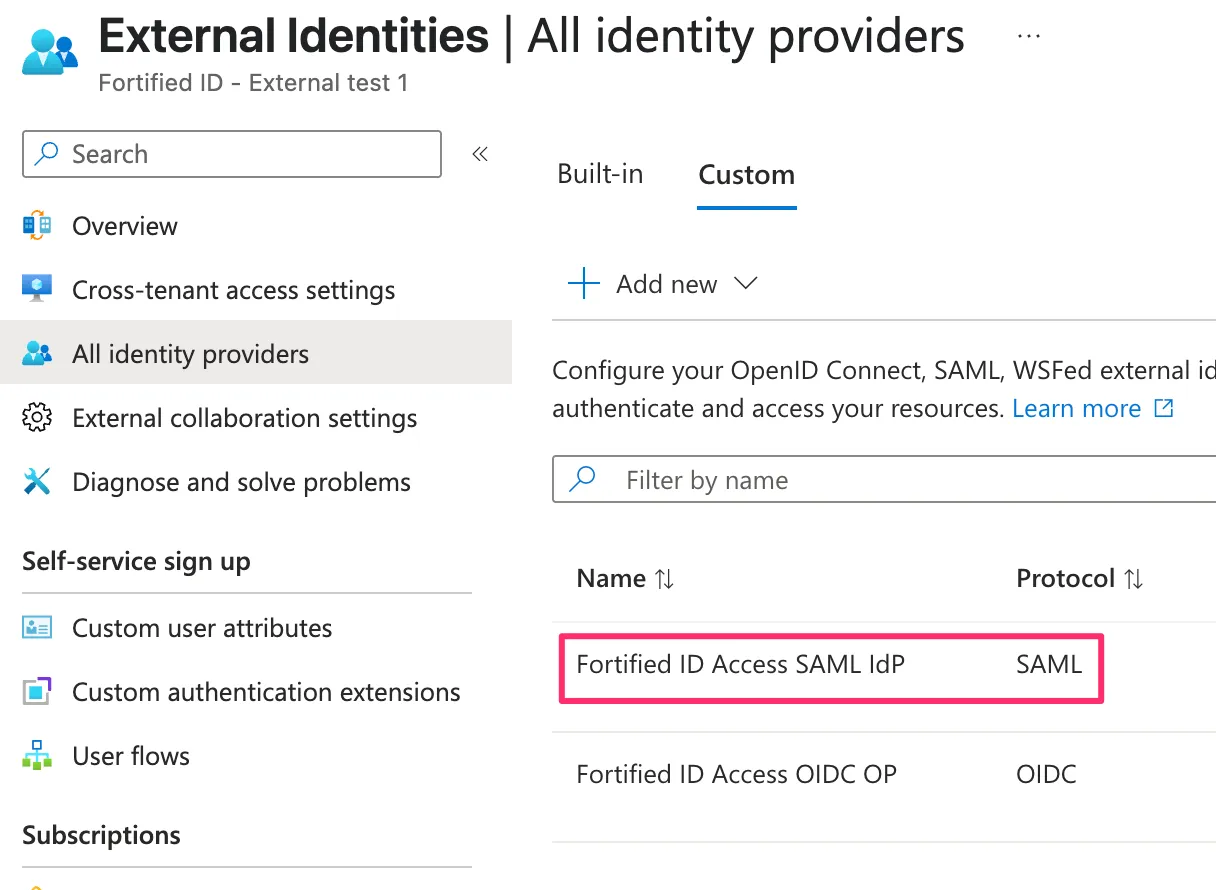
Section titled “Configuration at your Entra External tenant”- In Entra ID admin, click External identities -> All identity providers
- Click All identity providers
- Click Custom tab
- Click Add new
- Select SAML/WS-Fed
- Add a display name, I will use Fortified ID Access SAML IdP
- Choose SAML as protocol
- Add the domain name of your IdP
- For populating metadata I selected Parse metadata file
- Upload your Metadatafile
- The three fields below should auto populate based on your metadata file.
- In Metadata URL add your IdP URL if available.
- Click Save
Add a User Flow
Section titled “Add a User Flow”- Click Identity -> External identities -> User flows
- Click New user flow
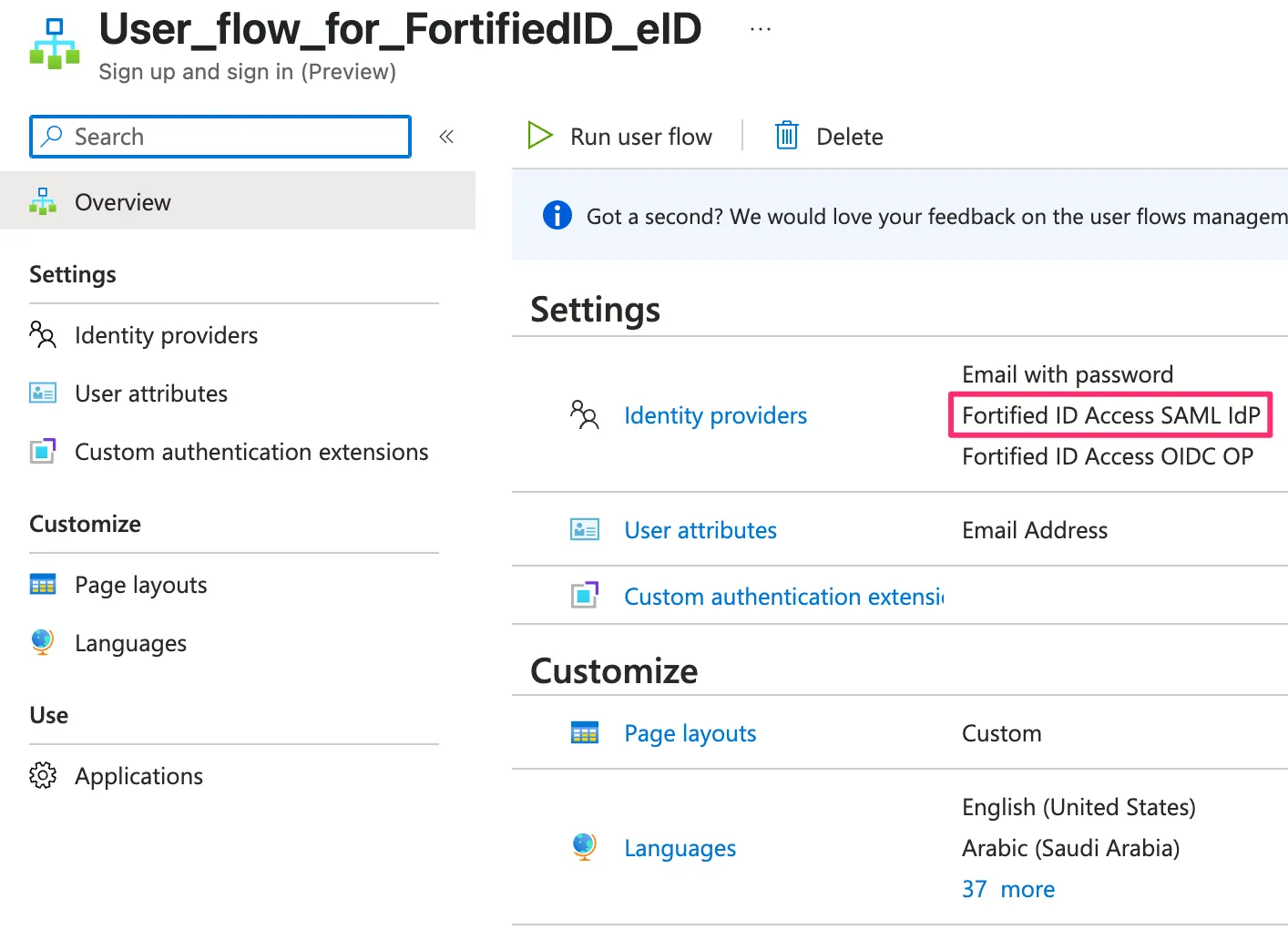
- Add a display name, e.g. User_flow_for_FortifiedID_eID
- Click checkbox for your Identity provider, in this use case dev.fortifiedid.se
- Add the User attributes you like to use
- Click Create
Register your app
Section titled “Register your app”Note. You can skip this step if you already have added your application.
For test we will use one of the example apps that is available in Entra which will run locally on your machine.
- Click Identity -> External identities -> Applications
- Click App registrations
- Add a Name, e.g. Test FortifiedID eID app (SPA/react)
- Leave Supported account types default
- Redirect
- Choose Single page-application (SPA)
- Add value http://localhost:3000/redirect
- Click Register
- On the Test FortifiedID eID app (SPA/react) settings page
-
Click Quickstart
-
On the Customize your sign-in experience page, leave as default. At bottom click Continue
-
On Add your sign-in to a sample app, click Single page application (SPA).
-
Then click React
- Download sample app and unzip
- Install Node.js
- Run in cmd/terminal
cd SPA && npm install && npm start-
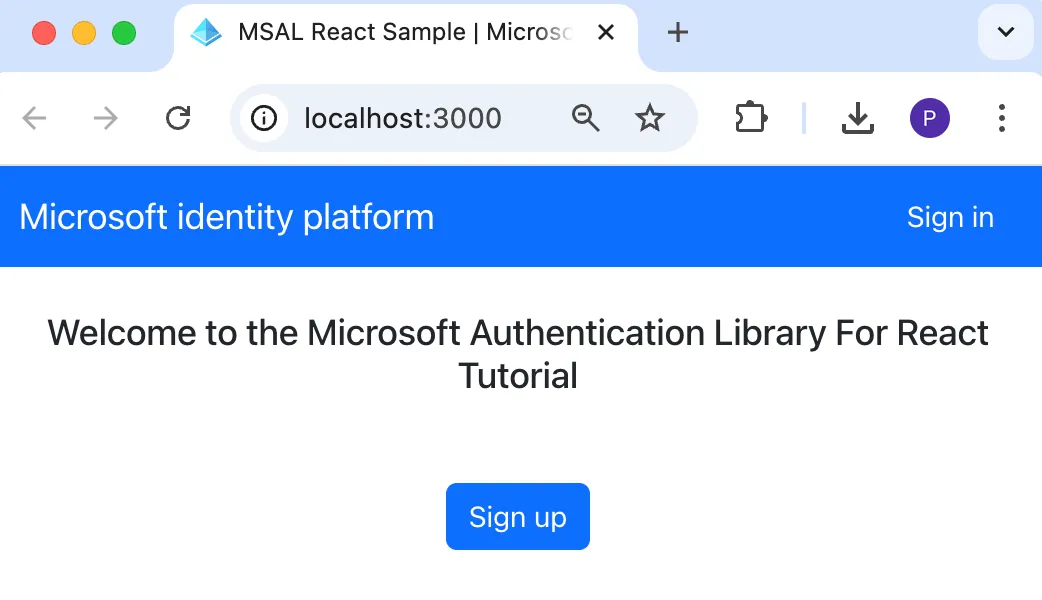
A browser should open and a page as below should present itself. This is a really basic app with focus only on sign up and sign in.
-
Close browser and shutdown app
-
Add app to your User flow
Section titled “Add app to your User flow”- Click Identity -> External identities -> User flows
- Click the user flow you created earlier, User_flow_for_FortifiedID_eID
- Click Applications
- Click + Add application
- Select and add your application Test FortifiedID eID app (SPA/react)
- If you like you can run Run user flow to verify your user flow
Configuration of Fortified ID Access SAML IdP
Section titled “Configuration of Fortified ID Access SAML IdP”Overview
Section titled “Overview”In summary, below will explain the authentication flow when doing sign in from Entra External. (as always, there are different ways of doing this depending of conditions.)
- Fortified ID Access SAML IdP receives the authentication request from Entra External
- User is authenticated using for example BankID, Freja, Foreign ID.
&#xNAN;In example below I use Foreign ID. - We extract data from authentication, for example personal identification number (personnummer)
- We make a query to Entra using the personal identification number
- Do the user exits? (if not we can create the user, not explained in this use case)
- We assume in this use case there is a user with this personal identification number already existing.
- We extract the Email address of the user
- We add the Email to the following two attributes
- mail (nameid in our SAML assertion)
- http://schemas.xmlsoap.org/ws/2005/05/identity/claims/emailaddress
- We make an authentication response to Entra and the user is authenticated.
- User is authenticated using for example BankID, Freja, Foreign ID.
Prerequisite
Section titled “Prerequisite”- You have Fortified ID Access installed and:
- Configured as an SAML IdP
- A selector with one or more eID methods installed
- SAML assertion pipe configured for Entra your External tenant
Add Entra ID module
Section titled “Add Entra ID module”Prerequisite
Section titled “Prerequisite”- To be able to query Entra from an application you need to register your application in Entra. (this is similar to the application registration done above but in this case it is for Fortified ID Access. To login to Entra doing the query we will use a certificate generated in entra and for the application. 1.
We need the Entra module to query Entra ID. Replace data below with your Entra tenant data.
- Create a file called for example entra.json
- Drop the file into folder:
/../FortifiedID\mgmt-center\data\customer\access\config\modules - Add data below and save file
{ "name": "EntraID", "config": { "namespace": "tenant1", "client_id": "your_client_id", "tenant_id": "your_tenant_id", "keystore": { "path": "${system.customer_home}/resources/your_certificate.p12", "password": "keystore_password", "type": "PKCS12" }, "keystore_alias": "alias_name_of_your_choice", "keystore_password": "keystore_password" }}Assertion Pipe including valve to query Entra
Section titled “Assertion Pipe including valve to query Entra”You might already have an SAML Assertion pipe. Below is an example how it could look like. Add or use as an start to create your own.
In example below, here are some notes
- We store personal identification number in Entra attribute faxNumber
- We collect some attribute data. The main interest is mail
- A couple of lines are disabled. You can use them to add a mail address of a user before start to query entra to verify it works. Change value to whatever the name is of your test user.
-
"_value": "[email protected]",
-
{ "id": "Retrieve_data_for_SAML_response_for_MS_Entra_FortifiedID_Tenant", "display_name": "SAML assertion for Microsoft Entra External tenant", "description": "SAML assertion for Microsoft Entra External tenant", "config": { "valves": [ { "name": "DumpRequest", "config": { "label": "*** DumpRequest****" } }, { "name": "DumpExports", "config": { "label": "*** DumpExports ****" } }, { "name": "EntraIDListUsers", "enabled": true, "config": { "namespace": "${globals.entraid_FortifiedIDExternalTest1_namespace}", "filter": "startsWith(faxNumber,'{{{exports.prid}}}')", "select": "otherMails,displayName,mail,id,userPrincipalName,faxNumber", "id_property": "id", "min": 1, "max": 2 } }, { "name": "DumpState", "config": { "label": "*** DumpState ***" } }, { "name": "ExportsPut", "enabled": true, "config": { "name": "mail", "value": "{{{item.mail}}}", "_value": "[email protected]", "replace": true } }, { "name": "ExportsPut", "enabled": true, "config": { "name": "http://schemas.xmlsoap.org/ws/2005/05/identity/claims/emailaddress", "value": "{{{item.mail}}}", "_value": "[email protected]", "replace": true } }, { "name": "DumpExports", "config": { "label": "*** 3 - DumpExports från DumpData Portal****" } }, { "name": "DumpState", "config": { "label": "*** DumpState ***" } } ] }}