
Add header in GUI
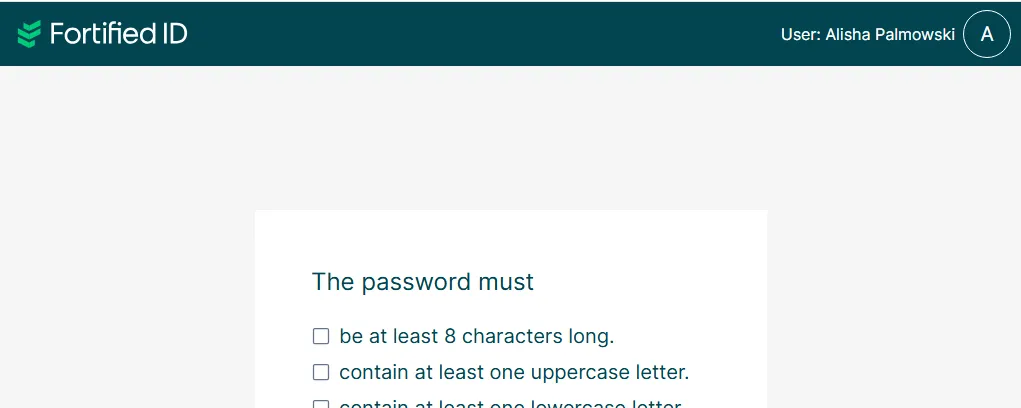
Set a text and an attribute on top-right (in front of avatar).
Scenario
Section titled “Scenario”You will see optional text and attribute in the GUI.
This scenario could easily be copied and modified to use in Enrollment, Forms and Portal.
Prerequisite
Section titled “Prerequisite”- Fortified ID Access current version installed
- Fortified ID Password Reset current version installed
Configuration
Section titled “Configuration”Add attribute in Fortified ID Access
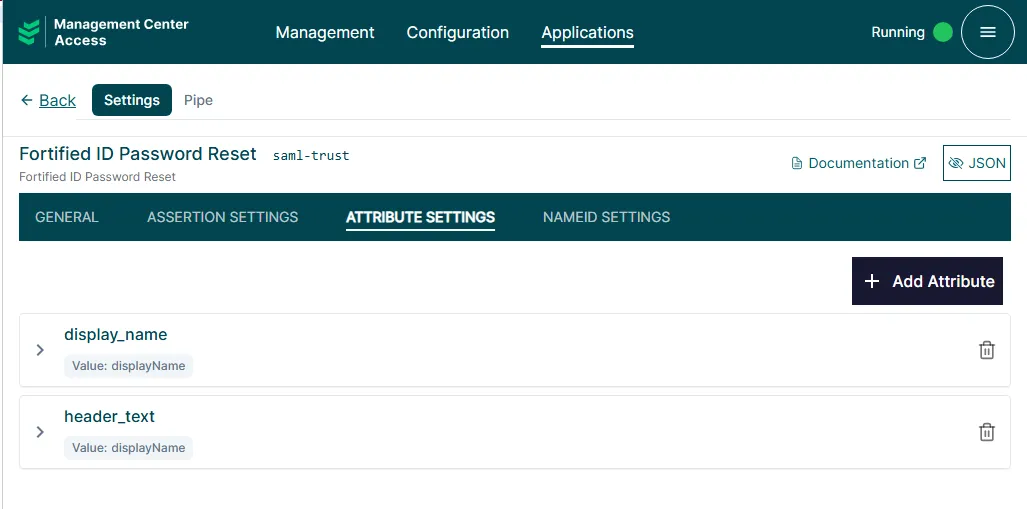
Section titled “Add attribute in Fortified ID Access”The attribute to be shown in Password Reset is header_text
- The value (in this example
displayName) must first be added via chosen authenticator (eg EnrichIdentity authenticator) - Open the ATTRIBUTE SETTINGS for the used Application, then add
header_textand assign the available value.
Add text and attribute in Fortified ID Password Reset
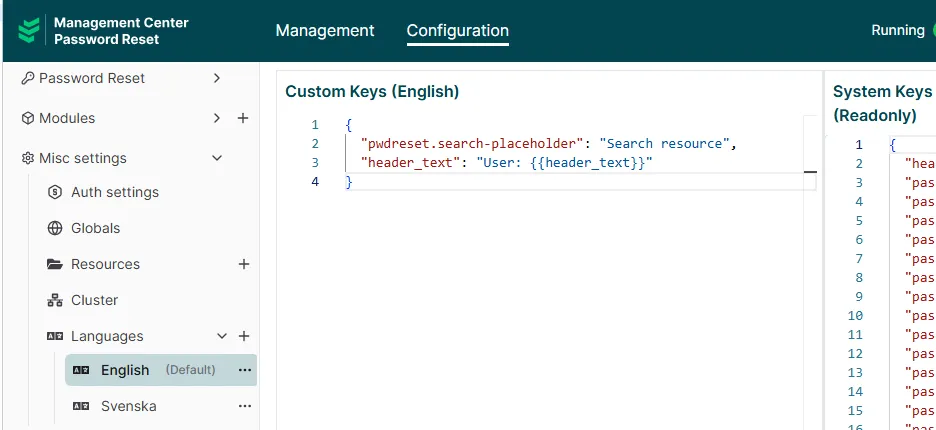
Section titled “Add text and attribute in Fortified ID Password Reset”The key "header_text" can consist of optional text and the used attribute.
- Open the Custom Keys for a language and add the key "header_text"
- Add the optional text (in this example User: ) and the used attribute to the key.
- Add same key (with translation as needed) to Custom Keys for other languages.
Testing the use case
Section titled “Testing the use case”Password Reset
Section titled “Password Reset”- Browse to https://PWDRESET-HOSTNAME/pwdreset
- Authenticate
- View the header