
Install
Step-by-step air-gapped installation of managed applications on Windows
Step-by-step air-gapped installation of managed applications on Windows.
Prerequisite
Section titled “Prerequisite”- Download appropriate version of the product you like to install
- Unzip each ZIP-file
- Put the content in a folder with the name of the downloaded product
- Example 1, if downloaded Access (integrity-server-3.2.0-dist.zip)
- Create folder access, note small letters.
- Create a file called current_version.txt and put in folder
- file should only contain the version of the product to start
- For example, 3.2.0
- Create a folder in access called the version number, 3.2.0 in this case
- Put the unzip content on this folder
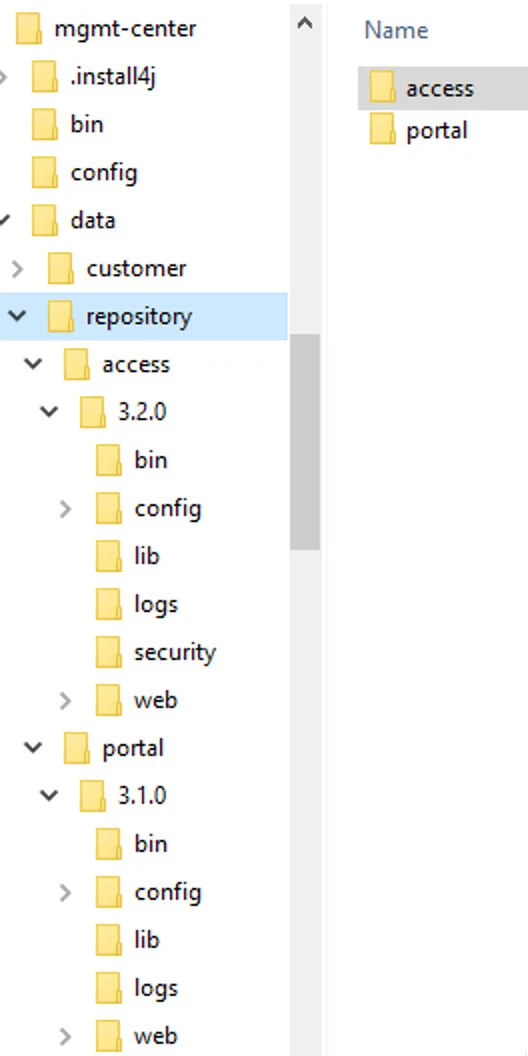
- See image below for this example.
- Do the same for each product.

Installation
Section titled “Installation”- Install Management Center
- Select the products you like to run
- DO NOT start the service when finishing installation guide
- Exit installation guide
- Add -Dair_gapped=true parameter to mgmt-center.vmoptions
-
Open \..\FortifiedID\mgmt-center\bin\mgmt-center.vmoptions
-
Add following properties. Add a line for each product and version you like to start.
- Go to bottom of file
- Add -Dair_gapped=true parameter (mandatory)
- Add for access -Daccess_install_version=3.2.0 (version number)
- Add for portal -Dportal_install_version=3.1.0 (version number)
-Dair_gapped=true
-Daccess_install_version=3.2.0-RC11
-Dportal_install_version=3.1.0- Save file
-
- Add each folder from the prerequirement section to management center
- Open \..\FortifiedID\mgmt-center\data\repository
- Add each folder. See example below.
&#xNAN;<installation_root>/data/repository/<managed_service_name>/<version_number>/
- Start service