
Google sign-in
Add Google sign-in as an authentication method to Integrity Web
Let your consumers use their existing Google account to sign in to any service protected by Integrity Web.
Guide prerequisite:
Integrity Web installedDNS-name and certificates in place for the Integrity Web https-hostEnterprise google admin account (for production purposes, for test you may use your own private google account)
Add authentication method
Section titled “Add authentication method”Add this configuration to the Authn module in the configuration:
{ "id": "google", "type": "OIDCRP", "config": { "base_path": "/saml/authn", "discovery_metadata_url": "https://accounts.google.com/.well-known/openid-configuration", "internal_http_destination": "default", "client_id": "google.client.id.value", "client_secret": "google.client.secret.value", "redirect_uri": "https://my_integrity_domain.com/saml/authn/google", "jwt_subject_parameter": "email", "scope" : "openid email" } }Change the DNS host name of the redirect_uri to match your environment. Copy the value of the redirect_uri as this will be used in a later step.
Google configuration
Section titled “Google configuration”- Sign in to Google. (For testing purposes, you may use your private google email account. For production, please use a proper Google administrator account)
- Open the Google API console.
- Create a new project.
- Enter a project name, such as Integrity
- Create
- When the project is created, a page called API and Services will load.
- Select Credentials
- Create Credentials -> OAuth client ID
- Choose Application Type = Web application
- Enter a name. such as Integrity
- Below Authorized redirect URIs, Click Add URI
- Enter the value copied in previous step.
- Create
- Copy the Client ID and the Client secret values presented. These will be used in later step.
Add client credentials
Section titled “Add client credentials”- Open the Integrity Web configuration
- Locate the Google Authentication method added in previous step
- Replace the client_id and client_secret values with the values copied in previous step.
Example:
{ "id": "google", "type": "OIDCRP", "config": { "base_path": "/saml/authn", "discovery_metadata_url": "https://accounts.google.com/.well-known/openid-configuration", "internal_http_destination": "default", "client_id": "1048692473524-kfeyhsdf34csds123123dw554gdfgsg.apps.googleusercontent.com", "client_secret": "GOCSPX-QUDGSKJfgbkdfgklö34fsdäfkjcs", "redirect_uri": "https://01c5-194-68-171-97.ngrok-free.app/saml/authn/google", "jwt_subject_parameter": "email", "scope" : "openid email" } }Alter the configuration to point to the new google authenticator, either directly or as a selector option.
Browse to the service protected by Integrity Web.
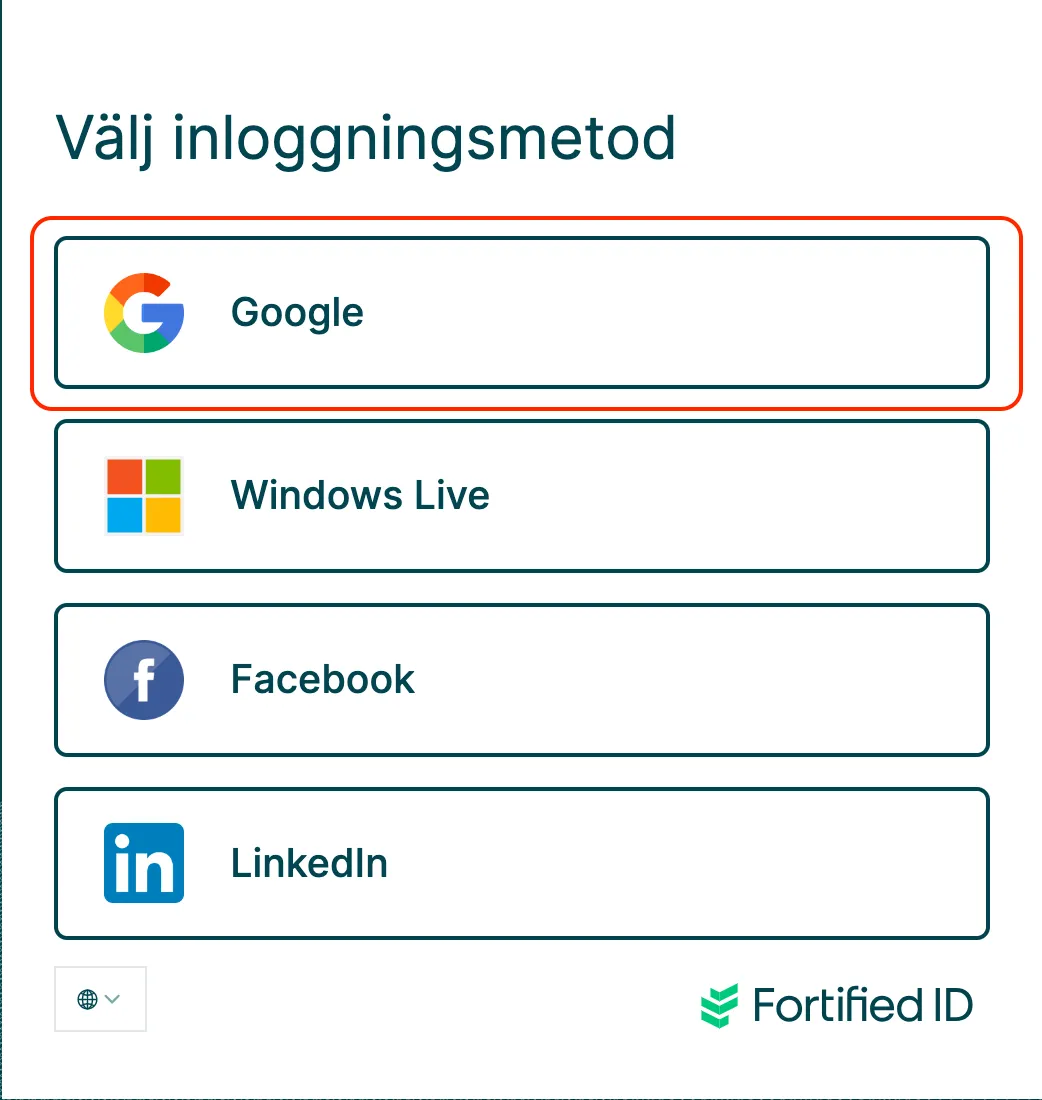
Select Google as authentication method.
Your browser should now be redirected to Google.
Enter your google credentials and approve the authentication.
You should now be redirected back to Integrity and then to the service with a valid authentication.
Use server.log for error tracing and debugging. Fix accordingly and test again.
Sample configuration
Section titled “Sample configuration”A sample Integrity Web configuration, including a number of different social provider sign-in options, can be downloaded here.